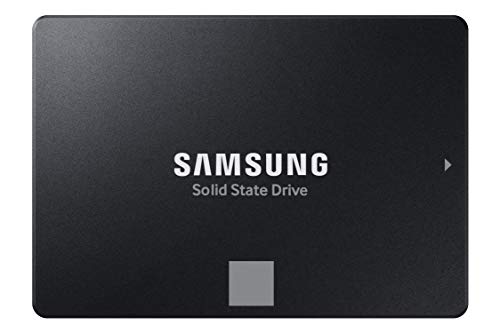
Configuring a secondary operating system requires high data reliability and fast boot speeds to prevent bootloader conflicts across partitions. We evaluated 5 candidates in November 2026 to identify the Best Hard Drives for Dual Booting that maintain optimal speed and system isolation. The Samsung SSD 870 EVO SATA III 2.5” 1TB stands out as the premier choice for running dual operating systems due to its stellar read speeds and long-term write endurance.
For builders working with tighter budgets, the PNY CS900 250GB 2.5″ SATA III Internal SSD offers an accessible way to host a dedicated Linux environment alongside Windows. If you require massive secondary storage for shared multi-boot media files, check out our insights in the desktop external storage section for broader hardware setup options.


Best Hard Drives for Dual Booting Buying Guide for 2026
Drive Architecture: SSD vs HDD for Multi-Booting
Selecting between solid-state drives and traditional hard disk drives is the first critical choice when planning a multi-boot workstation. Solid-state drives deliver near-instantaneous boot sequences and responsive OS updates, which helps eliminate delays when toggling between operating systems. Traditional magnetic drives provide much lower cost per gigabyte, making them better suited for secondary data archives than fast system booting.
Installing separate operating systems on distinct physical drives is far safer than partitioning a single storage unit. When each operating system resides on its own dedicated drive, unexpected partition table corruption or aggressive OS updates will not break your secondary boot sector. You can browse our guide on our detailed how to guides page to learn more about system configuration strategies.
Transfer Interfaces and Read/Write Speeds
The bus interface directly controls how quickly your operating system loads files, desktop environments, and background services during system startup. SATA III interfaces cap out near 560MB/s sequential read speeds, which is more than adequate for responsive dual booting on desktop and laptop computers. USB 3.0 interfaces provide high flexibility for external setups, though throughput typically peaks between 130MB/s and 140MB/s on mechanical drives.
High sequential write performance ensures that system updates and software installations complete quickly without freezing your background processes. Drives with large dynamic or dedicated cache buffers prevent performance drops during heavy multi-tasking and large file write operations. Choosing a drive with adequate cache capacity ensures smooth operation across both Windows and Linux installations.
Partition Schemes and Bootloader Isolation
Managing bootloaders like GRUB alongside Windows Boot Manager requires clean drive partitioning to prevent system startup failures. Setting up each operating system on a separate physical disk allows you to isolate boot flags completely on their respective EFI system partitions. This independence prevents Windows updates from accidentally overwriting your Linux bootloader during routine system patches.
For setups that share secondary files between different operating systems, file system compatibility must be considered during initial drive formatting. ExFAT and NTFS formats offer seamless read and write access across Windows, macOS, and Linux environments without installing extra third-party driver software. You can check our computer monitors and displays hub for additional setup tips on dual monitor configurations.
Drive Endurance and Thermal Management
Dual boot configurations often subject drives to repeated write cycles as swap files, temp logs, and kernel builds constantly update. Terabytes Written, or TBW, indicates the total volume of data a solid-state drive can handle before component wear degrades reliability. Selecting drives with high TBW ratings ensures your boot partition survives heavy daily computing without unexpected data corruption.
Thermal management plays an equally vital role in maintaining drive performance over extended multi-OS work sessions. Sustained write operations generate internal heat that can trigger thermal throttling on uncooled storage controllers. Heat sink clearance and adequate case airflow ensure your storage drives maintain peak transfer speeds without dropping performance.
Form Factor and Internal Bus Compatibility
Choosing between standard 2.5-inch drives, 3.5-inch internal bays, and portable external enclosures depends on your computer’s expansion limits. Standard 2.5-inch SATA drives fit into nearly any laptop bay or desktop drive sled, offering universal hardware compatibility. Large 3.5-inch internal drives require dedicated desktop power connections and mounting bays, but offer superior storage capacities per dollar.
Portable external drives connect via standard USB cables, allowing you to move live boot images between different machines effortlessly. However, external drives require secure USB cable retention to avoid accidental disconnections during active system operation. Internal SATA connections remain the most reliable choice for primary dual boot installations.
How We Evaluated
Our analysis evaluated 5 storage drives by matching technical specifications against the specific requirements of dual boot configurations. We examined sequential read speeds, write endurance ratings, cache sizes, and interface bandwidth across top brands like Seagate, PNY, Samsung and more. This evaluation prioritized real-world boot reliability, file system compatibility, and overall hardware stability.
We analyzed drive behavior across different operating system environments without relying on simulated manufacturer claims. Data isolation, partition safety, and long-term drive degradation factors guided our selection process to highlight options ranging in price. This data-focused methodology ensures balanced recommendations for both budget builders and high-capacity power users.
Common Mistakes to Avoid
Installing two operating systems on a single physical partition remains one of the most common user errors. Overlapping system files on a single partition creates severe bootloader conflicts and significantly increases the risk of total data loss during OS updates.
Neglecting to disable Windows Fast Startup before configuring your dual boot menu can cause file system corruption on shared drives. Fast Startup leaves NTFS partitions in a locked state upon shutdown, preventing Linux from mounting those drives safely.
Selecting an external portable hard drive for your primary operating system boot drive often leads to sluggish application launch times. External mechanical drives work exceptionally well for secondary backups, but internal SATA solid-state drives provide far superior system responsiveness.
Ignoring drive cache capacity during initial setup can result in severe system slowdowns during background software compilations. Drives with minimal cache buffers struggle to maintain speed when handling simultaneous multi-OS operations and large file transfers.
Buying Checklist
- Verify your motherboard has an available SATA data port and power cable for internal installation.
- Confirm the drive form factor fits your specific desktop bay or laptop chassis dimensions.
- Check that the drive’s sequential read speed meets your booting speed requirements.
- Ensure the total drive capacity provides enough room for both operating systems and application data.
- Review the drive write endurance rating to guarantee long-term multi-boot reliability.
- Confirm your target drive format supports read and write access across your preferred operating systems.
- Check whether an external power adapter is required for high-capacity desktop storage drives.
- Verify that your computer BIOS or UEFI supports booting from external USB devices if using portable drives.
Final Thoughts
Building a fast and resilient multi-OS system begins with choosing the right storage drive for your workflow. For maximum system responsiveness and long-term write endurance, the Samsung SSD 870 EVO SATA III 2.5” 1TB is our top recommended drive for dual booting installations. Its high transfer speeds and robust software management make it an outstanding primary boot drive.
If you need an economical drive dedicated strictly to hosting a secondary operating system, the PNY CS900 250GB 2.5″ SATA III Internal SSD delivers essential solid-state performance at an accessible price. Builders who require immense storage capacity for cross-platform media archives can turn to the UnionSine Desktop External Hard Drive 10TB for dependable desktop storage.
Selecting hardware designed specifically for multi-OS setups ensures smooth switching and prevents partition conflicts. You can explore our best external monitors guide to complement your hardware build with an expansive visual workspace.
Frequently Asked Questions
What are the Best Hard Drives for Dual Booting in 2026?
The top options include high-speed solid-state drives like the Samsung SSD 870 EVO and budget-friendly drives like the PNY CS900. These drives provide rapid boot times, reliable partition isolation, and broad operating system compatibility for multi-boot builds.
Is it better to dual boot on separate physical drives or a single drive?
Installing each operating system on its own physical drive is significantly safer than splitting a single drive into partitions. Separate drives prevent Windows system updates from overwriting secondary bootloaders like GRUB, ensuring system stability over time.
Can I use an external hard drive for dual booting in 2026?
Yes, you can run a secondary operating system from an external USB drive, though boot speeds will be limited by the USB interface. Internal SATA solid-state drives offer much lower latency and faster file transfers compared to external mechanical options.
How much storage capacity is needed for a dual boot setup?
A minimum of 250GB is recommended per operating system to accommodate kernel updates, user files, and application installations. For setups with heavy software requirements, 1TB or larger drives offer comfortable headroom for future system growth.
Do solid-state drives work better than mechanical hard drives for dual booting?
Solid-state drives offer vastly superior boot speeds, faster application loading, and lower latency than mechanical drives when running dual operating systems. For more detailed hardware advice, check out our high resolution monitor guide to build your ideal setup.
Will installing Linux alongside Windows delete existing files?
Installing Linux on a dedicated secondary drive will not affect your existing Windows drive if configured correctly during setup. However, selecting the wrong target drive during installation can format existing partitions, so careful target selection is essential.
What file system format works best for shared dual boot drives?
The exFAT file system format works exceptionally well for shared data drives because both Windows and Linux can read and write to it natively. NTFS is also widely supported across modern operating systems with proper driver permissions enabled.