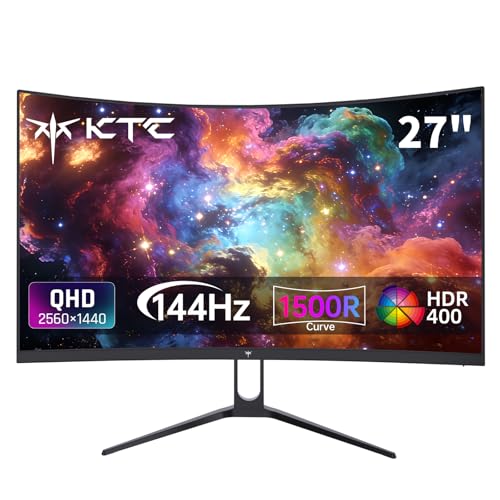

GeForce graphics cards require reliable adaptive synchronization and swift pixel response times to deliver fluid gaming performance. For players seeking optimal motion clarity in November 2026, the KTC 27 Inch Gaming Monitor 220Hz stands out as our top overall choice. It pairs a crisp 1440p Fast IPS panel with rapid refresh rates, making it an exceptional display among modern gaming monitors.
If you prefer an immersive curved display for deeper contrast in dark scenes, the KTC H27S5C 27″ Curved Gaming Monitor serves as an outstanding alternative. Across our evaluation of 5 qualified models, this display delivers excellent 1440p immersion without overburdening mid-range graphics hardware.


Best 144 Hertz Monitor for GeForce Graphics Cards Buying Guide
G-Sync and Adaptive Sync Compatibility
NVIDIA GeForce graphics cards rely on variable refresh rate technology to synchronize frame delivery with the physical screen refresh cycle. When your graphics processor renders frames at fluctuating rates, an unsynchronized display produces distracting horizontal screen tearing. Choosing a monitor with certified G-Sync compatibility or robust Adaptive Sync support eliminates this artifact entirely.
To activate G-Sync compatibility on modern displays, gamers must connect through a standard DisplayPort connection rather than legacy ports. DisplayPort establishes the required communication bandwidth for variable timing signals between the graphics driver and the display controller. Verifying this protocol support prevents stuttering during demanding graphical sequences where frame rates dip below peak thresholds.
Refresh Rates and Motion Response Times
A refresh rate of 144Hz or higher refreshes the screen image more than twice as fast as standard office displays. This elevated refresh cadence creates silky movement, reduces perceived input latency, and gives competitive players faster visual feedback. Transitioning beyond 144Hz toward 180Hz or 220Hz delivers even cleaner motion tracking in high tempo shooters.
Pixel response time works hand in hand with high refresh rates to prevent motion ghosting. A 1ms response rating ensures that individual liquid crystals switch colors rapidly enough to keep pace with incoming frames. Displays with slow response times show trailing artifacts behind moving targets, making fast targeting difficult during frantic firefights.
Resolution and Screen Size Balance
Matching screen dimensions to display resolution determines overall pixel density and image clarity. A 24-inch or 27-inch monitor featuring 2560×1440 resolution provides exceptionally crisp text, sharp textures, and expansive digital workspace. Exploring dedicated high resolution monitors helps players understand how pixel density impacts clarity.
Full HD 1080p resolution remains an accessible choice for budget setups and high frame rate targets. However, stretching 1080p across a 32-inch panel lowers pixel density, creating softer edges on fine textures. Gamers must weigh the graphical horsepower of their GeForce graphics card against desired visual sharpness before choosing display resolution.
Panel Technology Selection
Fast IPS panels provide outstanding color accuracy, wide viewing angles, and rapid pixel response times with minimal color shifting. These characteristics make Fast IPS technology the premier choice for mixed workloads, competitive gaming, and color critical tasks. Understanding modern panel technology ensures you select the display type tailored to your daily needs.
High contrast VA and HVA panels excel at producing deep, inky blacks and high static contrast ratios. They deliver exceptional atmosphere in dimly lit single-player adventure games where shadow detail matters most. The primary trade-off involves slightly narrower viewing angles, which curved panel geometry effectively resolves.
Screen Curvature and Viewing Comfort
Curved displays featuring a 1500R radius match the natural curvature of human peripheral vision. This curved design brings the outer edges of the display closer to your eyes, reducing the need for constant neck repositioning. The result is a more immersive visual wrap that keeps vital interface elements inside your active sightline.
Flat panels remain the preferred standard for pure esports competitors and technical draft workers who demand straight grid lines. Curved screens shine on wider 27-inch and 32-inch form factors where edge viewing angles become more pronounced. Selecting between flat and curved screens depends primarily on your preferred gaming genres and desk space.
Video Ports and Bandwidth Management
Connecting a high refresh monitor requires sufficient interface bandwidth to drive high resolutions at elevated frame rates. DisplayPort 1.4 handles high bandwidth payloads effortlessly, unlocking full refresh speeds up to 220Hz and beyond with variable sync enabled. HDMI 2.0 ports generally cap refresh output at 144Hz on 1440p resolutions, which works well for secondary consoles.
Buyers should confirm that their graphics card features matching physical DisplayPort outputs for seamless multi-monitor arrangements. Flexible input selection also allows simultaneous connection to a work laptop and a dedicated gaming desktop without swapping cables daily.
How We Evaluated
Our evaluation analyzed 5 models from top brands like KTC to determine real-world capability for GeForce graphics card owners. We cross-referenced published panel specifications, variable refresh synchronization protocols, input port bandwidth limits, and color gamut metrics. This data-driven approach highlights how each monitor handles fast frame rendering without relying on exaggerated claims.
We also assessed ergonomic adjustability, VESA mounting support, and built-in eye care features like flicker-free backlights and blue light filters. By comparing these hardware specifications against typical GPU performance profiles, we identified displays that maximize visual fluidity, structural durability, and overall ownership value.
Common Mistakes to Avoid
Connecting your display exclusively with an older HDMI cable often prevents NVIDIA G-Sync from operating properly. Always use a quality DisplayPort 1.4 cable to ensure variable refresh rate protocols activate inside the NVIDIA Control Panel.
Another frequent mistake is forgetting to adjust the Windows display refresh rate setting after unboxing a new high-speed monitor. Operating a 144Hz or 240Hz screen at the default 60Hz setting wastes valuable GPU frame output and degrades visual smoothness.
Choosing a large 32-inch 1080p display for a shallow desk can lead to visible pixelation and eye fatigue. If your desk depth is limited, opt for a 24-inch 1440p or 27-inch 1440p model to maintain crisp image clarity.
Failing to verify stand adjustability can result in poor ergonomic posture during extended gaming sessions. Confirm that your chosen model supports height, tilt, or standard VESA arm mounting before completing your purchase.
Buying Checklist
- Confirm DisplayPort 1.4 support to enable full G-Sync variable refresh rate compatibility.
- Check panel resolution to ensure your GeForce GPU can sustain 144 frames per second at target settings.
- Verify 1ms response time ratings to eliminate distracting motion blur and pixel smearing.
- Choose between Fast IPS for color accuracy or VA panels for deeper dark-room contrast.
- Measure your desk depth to choose between 24-inch, 27-inch, or 32-inch panel sizes.
- Check for VESA 100x100mm mounting holes if you plan to install an aftermarket monitor arm.
- Ensure the monitor includes flicker-free backlights and low blue light hardware modes for eye comfort.
- Verify included video cables match the physical display outputs on your graphics card.
Final Thoughts
Selecting the right display allows your GeForce graphics card to deliver smooth, stutter-free performance across all your favorite titles. For most competitive and casual players, the KTC 27 Inch Gaming Monitor 220Hz represents our best overall recommendation. Its rapid 220Hz refresh speed, Fast IPS clarity, and sharp 1440p resolution provide exceptional visual precision.
Gamers looking for high contrast immersion will appreciate the KTC H27S5C 27″ Curved Gaming Monitor with its enveloping 1500R curve and rich QHD visuals. Meanwhile, players with compact battle stations can turn to the KTC 24 Inch Gaming Monitor 180Hz for incredible pixel density and versatile ergonomic adjustments. You can also explore our guide on reliable HDMI monitors for multi-device connectivity options.
Whichever screen you choose, pairing a high refresh rate display with variable refresh technology guarantees an immediate upgrade to your daily gameplay. Review your available desk space, confirm your GPU ports, and select the monitor that matches your gaming ambitions.
Frequently Asked Questions
How do I enable G-Sync on a Best 144 Hertz Monitor for GeForce Graphics Cards in 2026?
Connect your monitor to your GeForce GPU using a DisplayPort cable and open the NVIDIA Control Panel. Navigate to the Set up G-SYNC menu, check the Enable G-SYNC box, and apply the settings to enjoy tear-free gaming.
Can HDMI cables run 144Hz on GeForce graphics cards?
HDMI 2.0 can support 1080p and 1440p resolutions at 144Hz on compatible hardware. However, enabling NVIDIA G-Sync variable refresh rate protocols typically requires a direct DisplayPort connection on most Adaptive Sync monitors.
Is 1440p resolution better than 1080p for a 27-inch gaming monitor?
Yes, 1440p resolution offers significantly higher pixel density on a 27-inch panel compared to 1080p. It produces sharper text, cleaner object edges, and more detailed game textures while remaining manageable for mid-range GeForce GPUs.
What is the benefit of a Fast IPS panel over standard VA panels?
Fast IPS panels deliver superior color accuracy, broader viewing angles, and faster pixel transition speeds that minimize ghosting. VA panels offer deeper black levels and higher contrast ratios, making them ideal for dark room cinematic gaming.
Does a 1500R curved monitor distort game visuals?
A 1500R curve does not distort 3D game visuals because it aligns with your natural peripheral vision. It enhances immersion in racing, flight simulation, and action titles while keeping screen edges equidistant from your eyes.
Will a 144Hz monitor improve my competitive gaming performance?
A 144Hz monitor reduces input delay and delivers smoother target tracking compared to traditional 60Hz displays. These benefits help players react faster and land shots more reliably in fast-paced first-person shooters.
How does modern display tech compare across modern computer displays?
Modern displays combine high refresh rates, adaptive frame synchronization, and advanced color backlights for versatile performance. Reviewing our overview of computer displays can help you compare office, creative, and gaming display features.
What is the top pick for Best 144 Hertz Monitor for GeForce Graphics Cards in 2026?
Our top recommendation is the KTC 27 Inch Gaming Monitor 220Hz for its blistering 220Hz speed, 1440p Fast IPS visual fidelity, and comprehensive Adaptive Sync support.