Building an ergonomic vertical display array requires finding displays with reliable pivot stands, sharp text clarity, and wide viewing angles. We evaluated 5 models for November 2026 to find the Best Vertical Monitors for Multi-Monitor Setups, lead by the KTC M27T6S 27 Inch Gaming Monitor. Its Mini-LED backlighting and QHD resolution deliver outstanding contrast and crisp text readability in portrait orientation.
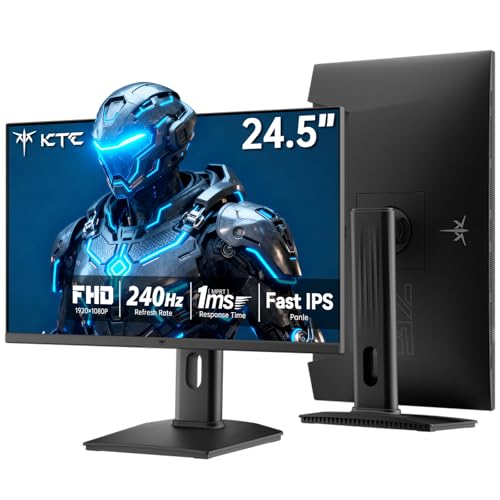
If you need high refresh rates or a more budget-conscious secondary screen, the KTC 24.5 Inch 240Hz Gaming Monitor offers excellent value with smooth motion and full ergonomic pivot movement. You can also explore our guide to desktop external displays for broader setup ideas.


Best Vertical Monitors for Multi-Monitor Setups Buying Guide for 2026
Stand Ergonomics and Pivot Capability
Setting up a vertical screen requires a stand that supports full 90-degree rotation in both clockwise and counter-clockwise directions. Without built-in pivot capabilities, you must purchase an aftermarket VESA arm, which adds extra cost and installation effort to your workspace setup.
Beyond portrait rotation, adequate height adjustment and tilt angles ensure your vertical display sits level alongside your primary screen. A stand with at least 110mm of height movement prevents awkward gaps and helps maintain a comfortable viewing height across your entire workspace.
If you plan to mount multiple displays, double-check that the monitor supports standard VESA 100mm by 100mm mounting patterns. Solid mounting support allows seamless integration into dual or triple arm configurations without requiring proprietary adapters.
Panel Type and Viewing Angles
When a monitor turns vertically, its horizontal viewing angles instantly become its vertical viewing angles. Selecting a panel with wide off-axis performance is essential, as poor viewing angles create noticeable color shifts and dimming from top to bottom.
In-Plane Switching panels, commonly known as Fast IPS, provide consistent colors across 178-degree viewing angles. Check our overview on panel technology to learn how IPS technology prevents visual distortion when viewing long documents or code streams.
Mini-LED panels further improve this experience by adding localized backlight dimming zones. High peak brightness and localized dimming create deep contrast without losing legibility, making vertical reading significantly easier on your eyes during long working sessions.
Resolution and Text Density
Vertical monitors frequently display text-heavy applications like code editors, web documentation, spreadsheet columns, and social feeds. Higher pixel density produces crisp letter edges, which reduces eye strain and minimizes the need for aggressive display scaling.
A 1440p Quad HD resolution on a 24-inch or 27-inch panel provides ideal text clarity for portrait mode. The extra vertical pixels allow you to read lengthy lines of code or full documents without constant scrolling.
Standard 1080p displays remain practical for secondary chat windows or system monitoring panels. However, users focused on heavy reading will benefit from higher resolution options to maintain sharp typography across vertical layouts.
Refresh Rate and Visual Fluidity
While high refresh rates are famous for gaming, they also enhance everyday productivity on vertical screens. Smooth scrolling at 180Hz or 240Hz makes reading moving text significantly easier while navigating through long webpages or timeline feeds.
Pairing high refresh rates with 1ms response times eliminates motion blur during quick page jumps. Fast response times ensure that code lines and text stay sharp while dragging windows across your multi-monitor desktop space.
Adaptive synchronization technologies like FreeSync and G-Sync maintain tear-free rendering during intensive tasks. Gamers and content creators who stream or run secondary apps alongside games will appreciate matching refresh capabilities across all screens.
Connectivity and Port Accessibility
Multi-monitor configurations demand flexible port selection to connect secondary displays without cluttering your GPU outputs. Look for monitors equipped with multiple HDMI ports and DisplayPort 1.4 inputs to simplify multi-device connectivity.
Consider cable routing when selecting a vertical display, as rotated ports orient differently than standard setups. Downward-facing connections combined with integrated cable management keep your desktop tidy and protect video cables from tight bending angles.
For expanded productivity, read our guide on best external monitors to see how smart port layouts streamline complex multi-screen setups.
How We Evaluated
We evaluated vertical monitor solutions by analyzing verified manufacturer specifications, display panel characteristics, and ergonomic adjustment ranges. Our evaluation prioritized panel viewing angles, text sharpness, refresh rates, and stand flexibility across different multi-monitor setups.
We analyzed real-world productivity scenarios, including software development, document editing, and multi-tasking workflows. By comparing pixel density, brightness ratings, and port configurations, we identified reliable options that deliver high visual comfort and seamless desktop integration.
Common Mistakes to Avoid
Choosing a vertical screen with poor viewing angles is a frequent error that harms daily usability. Standard TN or budget panels shift color significantly when rotated, creating dark spots at the top or bottom of your display.
Another common mistake is ignoring pixel density when buying larger vertical screens. A 27-inch 1080p monitor placed vertically displays larger individual pixels, which can make text appear soft or blocky when viewed up close.
Finally, buyers often forget to measure desk clearance before adding a portrait display. Rotating a 27-inch monitor adds substantial vertical height, which can block overhead shelving or collide with light fixtures if not planned ahead.
Buying Checklist
- Verify the stand features built-in 90-degree pivot adjustment.
- Confirm the display uses Fast IPS or Mini-LED panel technology.
- Check that VESA 100mm x 100mm mounting is supported for arm mounting.
- Choose 1440p resolution if you read dense text or code daily.
- Ensure height adjustment offers at least 110mm of vertical travel.
- Verify your graphics card has an available DisplayPort or HDMI port.
- Measure vertical desk clearance to avoid overhead shelf collisions.
Final Thoughts
Building an efficient portrait layout requires matching display specifications to your daily workflow demands. For top overall performance, the KTC M27T6S 27 Inch Gaming Monitor stands out with its Mini-LED contrast, crisp 1440p clarity, and complete ergonomic adjustability.
If budget efficiency is your main priority, the KTC 24.5 Inch 240Hz Gaming Monitor provides smooth 240Hz motion and rotation features at an attractive price point. For maximum text sharpness in a smaller footprint, consider the KTC 24 Inch Gaming Monitor 180Hz.
Explore our guide to best hi res monitors for more tips on maximizing your workspace productivity. Equipping your desk with the right vertical display transforms multi-tasking into a seamless, comfortable daily experience.
FAQs
Why choose Best Vertical Monitors for Multi-Monitor Setups in 2026?
Vertical monitors double the visible lines of text, making them ideal for programming, writing, and monitoring data feeds. Rotating a secondary screen conserves desk width while keeping critical information visible at a glance.
What is the ideal screen size for vertical orientation?
Displays measuring 24 inches to 27 inches offer the sweet spot for portrait placement. Sizes larger than 27 inches can cause neck strain because you must look up and down frequently to read screen contents.
Do all monitors support vertical portrait mode?
Not all monitors feature rotating stands, but almost any screen with VESA mounting capability can be turned vertically using an aftermarket monitor arm. Check operating system settings to rotate the display output accordingly.
Is 1440p resolution necessary for a vertical display?
While 1080p works well for general task monitoring, 1440p resolution provides noticeably sharper text edges. The increased pixel density reduces eye fatigue during long reading or coding sessions. Discover more in our guide to best high resolution computer monitors.
How do I rotate my screen display in Windows or macOS?
In Windows, open Display Settings, select your secondary screen, and change Display Orientation to Portrait. On macOS, open System Settings, select Displays, and choose 90 degrees under the Rotation menu.
Are IPS panels mandatory for vertical setups in 2026?
IPS or Mini-LED panels are strongly recommended because they maintain consistent color and contrast from extreme side angles. Traditional TN or VA panels often suffer from severe color washing when rotated 90 degrees.
Does a vertical screen require a high refresh rate?
A high refresh rate of 180Hz or higher is not strictly mandatory for reading, but it creates smoother scrolling performance. Higher refresh rates reduce visual stuttering when navigating long documents or fast web feeds.