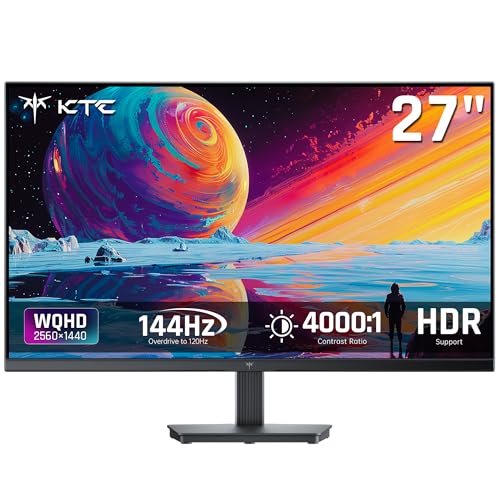

Selecting the right high refresh display transforms desktop productivity and gaming into a fluid visual experience. The KTC 27 Inch QHD Computer Monitor is our top recommendation for users who demand fast 144Hz motion clarity paired with a deep 4000:1 contrast ratio. It provides razor-sharp 1440p detail that keeps text crisp during work and eliminates motion blur in games.
For workspaces needing an even larger canvas, the KTC 32 Inch 2K Computer Monitor delivers expansive screen real estate with rich IPS color accuracy. We analyzed 5 Best 144Hz Large Monitors in November 2026 to find balanced models across various sizes. You can also explore our guide to the best high resolution monitors for expanded workspace options.


Best 144Hz Large Monitors Buying Guide
Screen Size and Viewing Distance
Choosing the correct screen size depends heavily on desk depth and daily workflow requirements. A 27-inch to 32-inch display allows comfortable multitasking without forcing unnatural neck movement. Placing a 32-inch screen roughly an arm length away ensures comfortable viewing angles across the entire panel.
Larger screens expand your visual real estate for spreadsheets, side-by-side browser windows, and immersive gaming scenes. However, pairing a massive diagonal size with low resolution leads to pixelated text and soft images. Balancing physical screen dimensions with pixel density remains essential for lasting comfort.
Resolution and Pixel Density
Resolution determines the total pixel count and image sharpness of your desktop setup. For displays spanning 27 inches or larger, QHD resolution (2560×1440) serves as the ideal standard over standard 1080p. It adds 77 percent more workspace, allowing complex timelines and dense documents to render clearly.
Higher pixel density prevents blurry fonts and jagged edges during intensive reading sessions. Upgrading to a sharper panel improves general productivity and daily entertainment quality. Readers interested in maximum clarity can review our collection of panel technology guides to understand panel pixel layouts.
Refresh Rate and Motion Smoothness
Refresh rate measures how many times per second the display updates its on-screen image. Moving from 60Hz to high refresh rates like 120Hz or 144Hz creates instantly noticeable fluidity across desktop animations and games. Cursor tracking feels instantaneous, reducing eye tracking fatigue during extended use.
Adaptive synchronization technologies such as FreeSync and G-Sync compatibility align the display refresh rate with GPU frame output. This dynamic pairing eliminates screen tearing and minimizes stutter during fast-paced motion sequences. Investing in high refresh performance provides immediate benefits for gaming and general browsing.
Panel Technology: IPS vs High Contrast HVA
Panel construction dictates color accuracy, viewing angles, and contrast performance. In-Plane Switching (IPS) panels excel in wide viewing angles and consistent color rendition across broad angles. They remain the benchmark choice for digital illustration, video editing, and office multitasking.
High Vertical Alignment (HVA) panels offer dramatically deeper black levels with contrast ratios reaching 4000:1. This makes dark scenes in movies and atmospheric games pop with realistic shadow detail. Selecting between IPS and HVA depends on whether you prioritize wide angle viewing or deep cinematic contrast.
Connectivity Ports and Bandwidth
High resolution combined with fast refresh rates requires modern digital video connections. DisplayPort 1.4 and HDMI 2.0 ports provide the necessary bandwidth to drive 1440p video at high frame rates simultaneously. Always verify that your computer graphics card supports these port standards.
Multiple input connections let you easily switch between work laptops and personal gaming consoles. Units equipped with audio passthrough ports also simplify desktop cable management. You can learn more about display connection standards in our overview of best HDMI monitors.
Ergonomics and Eye Care Features
Sitting in front of a large monitor for hours requires deliberate attention to ergonomic adjustment. Tilt-adjustable stands enable comfortable alignment with your natural line of sight. VESA mount compatibility (typically 100mm x 100mm) offers the flexibility to attach flexible monitor arms.
Hardware-level anti-blue light screens and flicker-free backlights actively reduce optical strain during late-night work sessions. These protective technologies maintain comfortable vision without distorting on-screen color profiles. Investing in eye care features ensures productive, strain-free viewing throughout the day.
How We Evaluated
We evaluated each display by analyzing verified technical specifications, panel specifications, and connectivity capabilities. Our assessment focused on refresh rate consistency, pixel density, native contrast ratios, and color gamut coverage.
We also weighed practical factors such as port selection, VESA mounting support, and eye care certifications. This systematic approach ensures our recommendations highlight dependable monitors that deliver balanced performance for gaming and professional tasks.
Common Mistakes to Avoid
A frequent mistake is using older display cables that restrict refresh rates to 60Hz. Even with a high refresh monitor, outdated HDMI 1.4 cables cannot carry 1440p high frame rate signals. Always use the included DisplayPort 1.4 or high-speed HDMI cables.
Another common error is choosing a 32-inch screen with 1080p resolution rather than 1440p QHD. Stretching 1080p across a large panel lowers pixel density, resulting in grainy text and visible pixel grids. Opting for 1440p preserves sharp detail across larger diagonal sizes.
Buyers often overlook stand ergonomics and desk space constraints before purchasing. A large monitor requires adequate desk depth so you can sit at a comfortable viewing distance. Ensuring the monitor supports VESA mounting solves desk clearance limitations quickly.
Buying Checklist
- Confirm native resolution is at least 2560×1440 (QHD) for panels 27 inches or larger.
- Check that your PC graphics card includes DisplayPort 1.4 or HDMI 2.0 outputs.
- Verify the monitor supports adaptive sync (FreeSync or G-Sync compatible) to stop screen tearing.
- Choose between IPS for wide color angles or HVA for superior 4000:1 contrast ratios.
- Ensure the screen includes flicker-free backlights and hardware low blue light modes.
- Check VESA 100mm x 100mm mounting compatibility if planning to use an aftermarket monitor arm.
- Measure desk depth to ensure at least 24 to 36 inches of viewing distance.
Final Thoughts
Finding the right balance of screen size, refresh rate, and resolution significantly enhances your daily computing setup. For top overall performance, the KTC 27 Inch QHD Computer Monitor delivers exceptional 144Hz smoothness and deep 4000:1 contrast. It represents a fantastic choice for users who switch between fast gaming and focused spreadsheet work.
If you prefer an expansive 32-inch view, the KTC 32 Inch 2K Computer Monitor offers vibrant IPS color accuracy and generous multitasking space. For users seeking versatile desktop productivity on a modest budget, the KTC 27 Inch Computer Monitor remains a reliable value option. You can browse more screen options in our guide to desktop and external monitors.
Frequently Asked Questions
What makes Best 144Hz Large Monitors ideal for gaming and work in 2026?
High refresh rates deliver silky smooth mouse movement and fluid visual transitions across all applications. Pairing 144Hz speeds with a large 1440p screen provides extensive workspace for multitasking while maintaining responsive motion for gaming.
Is 1440p resolution sharp enough on a 32-inch monitor?
Yes, 1440p resolution provides excellent visual sharpness on a 32-inch screen at standard desktop viewing distances. It maintains roughly 92 pixels per inch, delivering clean typography and detailed graphics without requiring heavy scaling adjustments.
Do I need a DisplayPort connection to achieve 144Hz refresh rates?
DisplayPort 1.4 provides the most reliable bandwidth for uncompressed high refresh rate video signals. However, HDMI 2.0 ports also support high refresh rates at 1440p on compatible modern graphics cards and monitors.
What is the difference between IPS and HVA panels on large monitors?
IPS panels provide broad viewing angles and consistent color reproduction across the entire screen surface. HVA panels deliver superior native contrast ratios up to 4000:1, making dark scenes and shadows appear deeper and more dramatic.
Does adaptive sync work with both NVIDIA and AMD graphics cards?
Modern adaptive sync monitors support both AMD FreeSync and NVIDIA G-Sync compatibility protocols. This open standard synchronizes frame output across modern graphics cards, eliminating screen tearing and stutter during intense action.
How does a high refresh rate reduce eye strain during long workdays?
Higher frame updates reduce micro-stutter when scrolling through long documents, web pages, and code editors. For more ergonomic workstation ideas, check our recommendations for best external computer monitors.
Can I mount these large monitors on standard monitor arms?
Most large desktop monitors feature industry-standard VESA 100mm x 100mm mounting hole patterns on the rear chassis. This allows quick attachment to aftermarket desk clamp arms or wall mounts for enhanced ergonomic flexibility.
What are the top rated picks among Best 144Hz Large Monitors in 2026?
Top models in 2026 include 27-inch and 32-inch 1440p displays that combine fast refresh capabilities with rich color gamuts. Choosing between them comes down to whether you prefer high-contrast panels or ultra-wide IPS viewing angles.