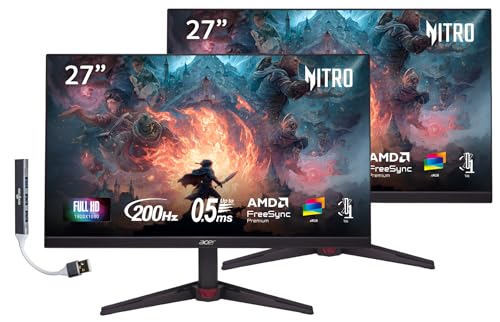
Gamers building a dual screen battle station will find the Acer Nitro 27″ FHD IPS ZeroFrame Design to be the top performer among Best Gaming Monitors for Dual Setup in 2026. Its borderless edges and rapid 200Hz refresh rate create an expansive panoramic view that eliminates visual seams between screens.
For budget-conscious players with compact desks, the Kado Dual Monitor 2-Pack 24″ Curved 1500R delivers comfortable immersion at a lower cost. We compared 5 matched configurations this November, and you can explore more options in our guide to gaming monitors.



Best Gaming Monitors for Dual Setup Buying Guide
Bezel Design and ZeroFrame Construction
When placing two monitors side by side, the center border is the most noticeable visual barrier. Conventional thick monitor bezels create a wide gap that breaks immersion during gameplay. Choosing displays with ultra-slim borders or zero-frame profiles minimizes this physical seam so your gaze moves naturally across both panels.
A thin border also simplifies aligning your crosshairs and interface windows across the center line. If you choose mismatched bezels, uneven alignment can cause optical fatigue during long gaming tournaments. Look for frameless three-sided chassis designs to preserve a continuous viewing area.
Refresh Rate and Motion Synchronization
Matching refresh rates across both displays ensures smooth visual transitions when dragging windows or tracking fast-moving action. High refresh rates such as 165Hz, 180Hz, or 200Hz render fast frames fluidly without stutter. If one screen runs at a low refresh rate and the other runs fast, your graphics card can encounter frame pacing hiccups during multi-monitor rendering.
Hardware adaptive sync like AMD FreeSync Premium keeps monitor refresh rates locked to your graphics processing unit output. This synchronization prevents screen tearing across horizontal pans. If you want to check panel technologies and visual refresh behaviors, browse our overview on IPS, OLED and LED panels.
Curved vs Flat Screen Ergonomics
Curved monitors featuring a 1500R radius bend inward to match the natural curvature of the human eye. In a dual monitor arrangement, two curved screens form a gentle semicircle around your peripheral vision. This curve reduces the distance your eyes must refocus when scanning between the primary game screen and side chat displays.
Flat screen setups offer greater flexibility if you plan to tilt one screen vertically for Discord or coding. Curved screens work best in horizontal configurations where both panels face you at equal angles. Consider your primary desk usage before deciding between flat panels and curved displays.
Screen Size and Resolution Balance
Full HD resolution at 1920×1080 provides crisp visuals on 24-inch and 25-inch screens while keeping GPU workloads manageable. On 27-inch displays, 1080p delivers large targets and text, making competitive games easy to track without excessive squinting. For readers interested in higher pixel counts, explore our guide on high resolution computer monitors.
A matched pair of identical screen sizes guarantees equal physical height and pixel pitch. Mismatching a 24-inch screen with a 27-inch screen creates an uneven desktop horizon that disrupts mouse cursor tracking between screens. Buying matched twin packs prevents scaling discrepancies entirely.
VESA Mounting and Desk Space Management
Dual monitors take up significant desk real estate when using standard included stands. VESA mount compatibility with standard 75x75mm or 100x100mm patterns allows you to mount both screens on a single dual-arm desktop clamp. This floating setup frees up surface area for large mouse pads and streaming accessories.
Monitor arms also let you adjust tilt, swivel, and height independently to eliminate ergonomic neck strain. When mounting two screens, ensure both panels share identical VESA bolt patterns so the arm mounts at the same relative height on each frame.
Connectivity and Port Accessibility
A dependable dual monitor setup requires multiple video output connections on your computer. Most modern graphics cards provide a combination of DisplayPort and HDMI ports. Ensure your selected monitors provide both input types so you can connect each display directly without relying on unreliable dongles.
Some advanced models include bundled USB hubs or audio pass-through jacks for tidy desktop organization. Having integrated cable routing and easily accessible ports keeps your gaming station clean and simplifies peripheral hookups.
How We Evaluated
Our evaluation methodology focuses on objective technical specifications, panel matching consistency, and physical ergonomic compatibility. We examined refresh rate ceilings, response time capabilities, and bezel profiles across twin monitor packages to determine true dual display performance.
We also verified VESA mounting support, adaptive sync integration, and color reproduction metrics from manufacturer documentation. This data-driven approach highlights balanced options that provide reliable motion clarity and seamless side-by-side alignment without unnecessary desk clutter.
Common Mistakes to Avoid
Buying mismatched screen sizes is a frequent error that leads to frustrating cursor drops when moving the mouse across screens. Always match screen size and native resolution so your operating system tracks desktop movements seamlessly across both panels.
Overlooking your graphics card port output configuration can leave you unable to drive both monitors at their maximum refresh rates. Verify whether your GPU has sufficient DisplayPort or HDMI 2.0 outputs before selecting high refresh rate displays.
Neglecting bezel thickness ruins immersion in side-by-side gaming configurations. Selecting monitors with thick outer plastics creates an intrusive visual seam right down the center of your dual screen field of view.
Forgetting VESA compatibility forces you to rely on bulky standard desk stands that crowd your keyboard and mouse space. Check for standard rear mounting holes to maintain flexible placement options on monitor arms.
Buying Checklist
- Confirm your graphics card possesses two separate video output ports such as HDMI and DisplayPort.
- Verify that both monitors share the same screen size and 1920×1080 native resolution.
- Check for ultra-thin ZeroFrame or slim bezel borders to reduce the central seam between panels.
- Ensure standard 75x75mm or 100x100mm VESA mount patterns exist for dual arm desk mounting.
- Select adaptive sync compatibility such as AMD FreeSync Premium to eliminate motion tearing.
- Choose between a 1500R curved wrap-around setup or flat panels based on your desk depth.
- Confirm refresh rates meet your gaming targets with options offering 75Hz, 165Hz, 180Hz, or 200Hz.
Final Thoughts
Creating a cohesive dual display setup elevates both competitive gaming and multitasking workflows. For top tier motion clarity and virtually borderless aesthetics, the Acer Nitro 27″ FHD IPS ZeroFrame Design is our top recommendation for Best Gaming Monitors for Dual Setup. Its 200Hz refresh rate and IPS color fidelity provide an ultra-smooth visual canvas.
If you prefer a curved wrap-around field of view on a budget, the Kado Dual Monitor 2-Pack 24″ Curved 1500R provides ergonomic comfort in a space-saving package. For players seeking high speed flat screens in a larger format, the Kado Dual 2-Pack 27″ 165Hz 1ms 1920×1080 Flat offers fast 1ms responsiveness.
To learn more about optimizing your desktop display arrangement, check out our comprehensive guide on desktop and external monitors. Investing in a matched pair ensures consistent colors and refresh rates for years of comfortable gaming.
Frequently Asked Questions
What is the top-rated option among Best Gaming Monitors for Dual Setup in 2026?
The Acer Nitro 27″ FHD IPS ZeroFrame Design leads the category due to its slim zero-frame bezel, vivid IPS panel, and rapid 200Hz refresh rate.
Is a curved monitor better for a dual display gaming setup?
Curved monitors with a 1500R curvature wrap naturally around your peripheral vision to reduce eye strain. They work exceptionally well when placed side by side in a dedicated horizontal layout.
Do both monitors in a dual setup need to have the same refresh rate?
Having matched refresh rates prevents GPU pacing stutter and provides a uniform visual feel when dragging windows across screens. While mismatched rates can work, matched pairs deliver the most stable gaming experience.
Can I mount these dual gaming monitors on a dual monitor arm?
Yes, all featured models offer standard VESA mounting compatibility. Using a dual-arm desk mount frees up valuable desktop space and allows precise alignment of the two screens.
How do I connect two gaming monitors to a single PC?
Connect each monitor directly to a separate video output port on your dedicated graphics card using DisplayPort or HDMI cables. Avoid daisy chaining unless your hardware explicitly supports Multi-Stream Transport.
Are 24-inch or 27-inch monitors better for a dual setup?
A 24-inch dual setup fits comfortably on smaller desks and provides sharp pixel density at 1080p resolution. A 27-inch dual array offers a larger visual presence but requires a deeper desk to maintain comfortable viewing distances.
Where can I find more advice on multi-monitor configurations?
You can read our detailed guide to how to optimize monitor arrangements and desk ergonomics for maximum productivity and gaming performance.
Does AMD FreeSync work across both screens simultaneously?
AMD FreeSync works on both monitors when each screen is connected via compatible DisplayPort or HDMI connections and enabled within your GPU driver settings. This keeps games tear-free on either display.