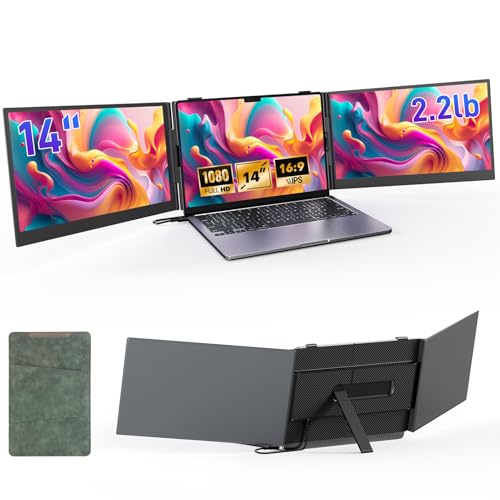
The Laptop Screen Extender, 14″ FHD 1080P IPS is our top recommendation for anyone seeking a featherlight, plug-and-play secondary display that attaches easily without driver hassles. It delivers crisp full HD visuals across a compact profile that fits neatly into any travel backpack. You can also explore our guide to desktop and external monitors for permanent workspace configurations.
If you require a triple-screen mobile workstation, the 15.6″ One-Cable Laptop Screen Extender is our favorite multi-panel upgrade for demanding remote professionals. It expands your workspace across dual full HD panels using an efficient single-cable connection once the initial driver is configured.



Best Monitors for MacBook Air M1 Buying Guide
Display Connectivity and M1 Architecture Limits
The base Apple M1 processor natively outputs video to only one external display over standard DisplayPort alternate mode. Connecting a single portable screen through USB-C works immediately without extra software. When you need two external displays, your hardware must utilize specialized display drivers or driver-assisted multi-stream cables.
Understanding this architecture prevents connectivity surprises when unboxing your new monitor setup. Single-screen extenders provide zero-friction operation because macOS handles them as native external monitors. Multi-panel systems require a quick one-time driver setup to bypass the single-stream barrier imposed by the base M1 silicon.
Panel Quality and Visual Clarity
A secondary screen should match the viewing comfort of your Apple Retina display as closely as possible. Look for IPS panels featuring full HD 1080p resolution, wide 178-degree viewing angles, and 100% sRGB color gamut coverage. You can read more about panel tech in our guide to IPS and LED panels.
Matte anti-glare coatings and flicker-free backlights are equally essential for sustained work sessions. These treatments reduce harsh reflections when working in coffee shops, airports, or brightly lit office spaces. High color fidelity ensures spreadsheets, graphics, and video feeds remain readable and pleasant throughout your workday.
Portability, Weight, and Chassis Durability
Portable monitors designed for travel must balance sturdy construction with minimal carry weight. High-grade aluminum alloy shells provide superior structural rigidity and heat dissipation compared to brittle plastic alternatives. Aluminum frames resist bending inside commuter bags while adding a sleek aesthetic that complements your laptop.
Single-panel extenders often weigh as little as 1.3 pounds, making them unnoticeable inside a briefcase. Dual-panel triple-screen frames naturally weigh more, typically hovering between 2.2 and 4 pounds. Choosing the right form factor depends on whether you value ultimate lightness or maximum workspace real estate on the road.
Power Delivery and Cable Management
Connecting external screens to your laptop introduces unique power demands that affect battery consumption. A single USB-C connection can often handle both display data and operating power directly from your laptop. Review our comprehensive guide to external monitors for more setup tips.
Running dual external panels simultaneously draws substantial wattage from your machine. To ensure reliable performance without unexpected display flickering, use an external power adapter rated at 5V/2A or higher. Power pass-through support allows your wall charger to supply the monitor while simultaneously charging your laptop.
Mounting Stability and Ergonomic Adjustability
Screen extenders attach either directly to your laptop lid or rely on an integrated freestanding kickstand. Freestanding designs eliminate mechanical stress on your laptop hinges, protecting your display assembly over years of use. Adjustable back panels allow you to position the side monitors at comfortable focal angles.
Hinges offering 180 to 360 degrees of rotation allow flexible configurations for group presentations or portrait viewing. Portrait orientation is especially valuable for programmers scanning code or finance professionals analyzing vertical spreadsheets. A sturdy base prevents wobbling when typing vigorously on uneven desks.
Screen Sizing and Laptop Proportions
Screen extenders generally come in 14-inch and 15.6-inch panel sizes to match modern laptop footprints. A 14-inch monitor matches the compact dimensions of a 13.3-inch laptop closely, maintaining a balanced center of gravity. Larger 15.6-inch panels offer roughly 24% more viewing area for multitasking.
While 15.6-inch panels improve text legibility, they create a wider desk footprint that requires ample workspace. If you frequently work on cramped airline tray tables, a 14-inch display provides the ideal balance of space and comfort. Assess your usual work environment before deciding between compact mobility and large display size.
How We Evaluated
We analyzed 5 leading portable displays from Redalf by evaluating verified technical specifications, macOS compatibility, and real-world mobile utility. Our assessment focused strictly on hardware engineering, display panel specifications, and interface versatility.
We paid close attention to how each display handles the architectural requirements of Apple Silicon. Products were graded on connection simplicity, color accuracy, chassis build quality, and ergonomic mounting mechanisms to ensure dependable recommendations.
Common Mistakes to Avoid
A frequent error is assuming the base M1 laptop natively powers two external displays without software assistance. Buyers who skip the required driver installation for triple-screen setups often find only one external display functioning. Always confirm whether your chosen multi-monitor hardware requires a helper driver on macOS.
Another common mistake is failing to supply external power when running dual auxiliary panels. Relying solely on the laptop battery for high-brightness triple screens can cause sudden signal drops or rapid battery drain. Connecting a dedicated 5V/2A power supply guarantees stable illumination and prevents unexpected shutdowns.
Finally, many users overlook the physical dimensions and weight distribution of heavy clamp-on monitors. Attaching heavy screens without utilizing the included kickstand can strain laptop hinges over time. Always deploy the built-in rear support stand to maintain stability and protect your computer frame.
Buying Checklist
- Verify whether the monitor supports native macOS output or requires a helper driver for multi-screen expansion.
- Confirm the display includes a full-featured USB-C cable supporting DisplayPort Alternate Mode.
- Check that your charging brick provides at least 5V/2A or 65W pass-through power for dual-screen setups.
- Inspect the chassis for aluminum alloy construction rather than fragile plastic casing.
- Ensure the panel features IPS technology with full HD 1080p resolution and anti-glare coating.
- Confirm the screen size fits comfortably on your typical desk or travel workspace.
- Verify that the package includes all essential connection cables and a protective travel sleeve.
- Check that the unit features an independent kickstand to eliminate hinge strain on your laptop.
Final Thoughts
Selecting the right external display transforms your compact laptop into an expansive, highly capable workstation. For users seeking absolute simplicity and featherlight portability, the Laptop Screen Extender, 14″ FHD 1080P IPS is our top overall pick. Its zero-driver setup and vibrant IPS panel make mobile multitasking completely effortless wherever you set up your desk.
If your daily workflow involves managing multiple complex spreadsheets, coding windows, or communication apps simultaneously, consider the 15.6″ One-Cable Laptop Screen Extender. It delivers exceptional productivity by adding two full-sized screens through a single streamlined connection. You can also explore our guide to HD computer monitors for additional display options.
For travelers wanting triple-screen capability in a lighter format, the Laptop Screen Extender, 14″ Ultra Thin delivers great balance across durability, size, and visual clarity. Choosing the right display depends on your daily mobility requirements and multitasking habits.
FAQs
Can the MacBook Air M1 support dual external monitors natively?
The base Apple M1 chip natively supports only one external monitor over standard DisplayPort alternate mode. To run two or more external displays, you must use an extender that utilizes software drivers or a specialized multi-stream cable interface.
What is the top-rated option among Best Monitors for MacBook Air M1 in 2026?
The Laptop Screen Extender, 14″ FHD 1080P IPS stands out as our top recommendation due to its lightweight build, vivid 1080p IPS panel, and seamless plug-and-play operation with no drivers required.
Do portable monitors drain the MacBook Air M1 battery quickly?
Running an external display powered directly from your laptop USB-C port will increase battery consumption. For extended work sessions, connecting your laptop charger directly to the monitor power input provides steady pass-through charging.
Why do some triple screen extenders require a driver on macOS?
Because the M1 silicon restricts native external video output to a single display stream, triple screen extenders use helper software to send the secondary video signal over standard USB data channels. Learn more troubleshooting methods in our how to guides.
Is 1080p resolution sharp enough for a 14-inch or 15.6-inch portable monitor?
Full HD 1080p resolution provides excellent pixel density and sharp text clarity on 14-inch and 15.6-inch screens. It delivers clean visuals for office documents and web browsing without overtaxing your graphics processor.
Can I power a portable monitor using only one USB-C cable from my laptop?
Single-screen portable monitors can easily run using a single full-featured USB-C cable for both video and power. Triple-screen extenders often recommend an auxiliary power cable to ensure stable backlighting across multiple panels.
Will attaching a portable screen extender damage my laptop hinge?
Quality screen extenders include integrated rear kickstands designed to support the frame weight on your desk surface. Using the built-in kickstand prevents excess leverage and protects your laptop hinges from mechanical stress.
Are portable monitors compatible with other operating systems?
Most portable displays offer wide compatibility across Windows, Chrome OS, Linux, Android, and popular gaming consoles. They support standard USB-C video output as well as HDMI connections using the supplied accessory cables.