
An external monitor turns a laptop into a two-screen workstation. You can keep email on one screen and work on the other, or join a video call while reading notes. There are two very different ways to do it. A portable monitor folds into your bag and runs off one USB-C cable. A desktop monitor stays on the desk and gives you a bigger screen for less money.
This page is for laptop owners deciding between the two. The questions that matter most: what ports your laptop actually has, and whether you need the screen to travel. We cover three portable picks and three low-cost desktop screens.
How we chose
- Connection to a laptop: USB-C (single-cable power and video), HDMI or mini-HDMI, and VGA for older machines.
- Portability: listed weight and thickness for travel screens.
- Stand or support: kickstand, folding case, tripod socket or VESA mount.
- Screen basics: size, 1080p resolution, panel type and refresh rate.
- Warranty length as stated.
These picks are based on manufacturer specs and owner reviews, not hands-on testing. See how we research.
Quick picks
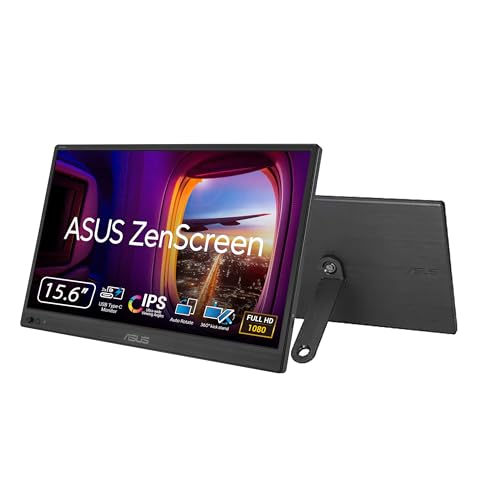
- Best portable overall: ASUS ZenScreen MB169CK — 15.6-inch 1080p IPS with dual USB-C, a 360° kickstand and a listed weight of 0.78 kg.
- Best larger portable: Acer PM191Q — 18.5-inch 1080p IPS at 100Hz with two USB-C ports and HDMI.
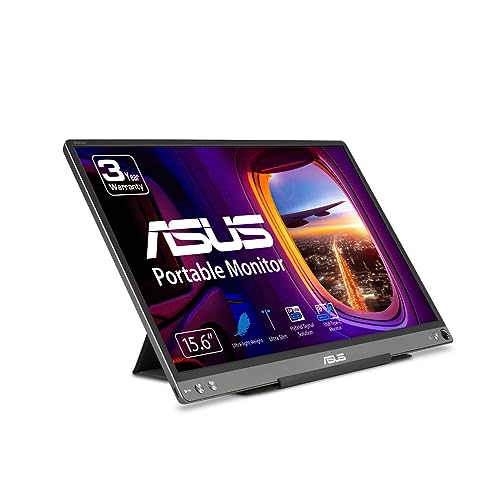
- Best portable for older laptops: ASUS ZenScreen MB16ACE — the listing says it works with USB-C or USB-A laptops, and the case folds into a stand.
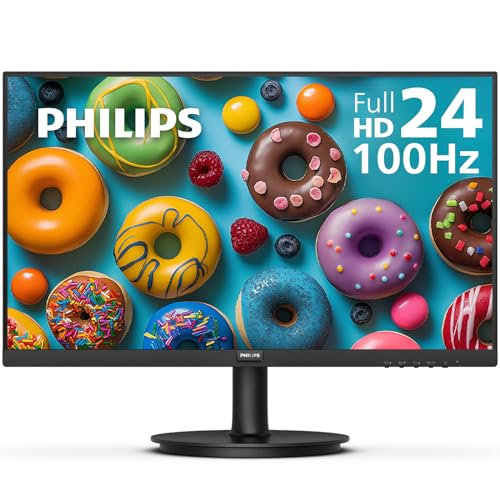
- Best budget desk screen: Philips 241V8LB — 24-inch class 1080p at 100Hz with HDMI, VGA and a 4-year advance replacement warranty.
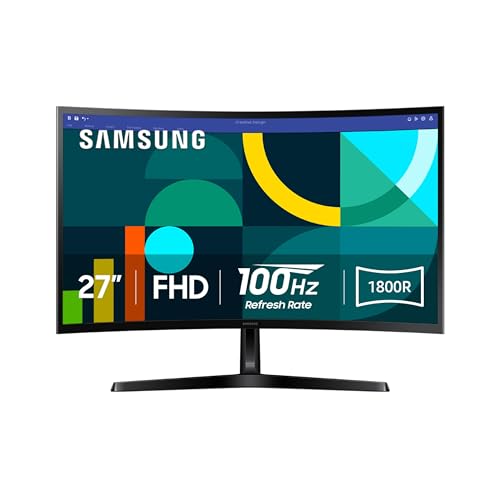
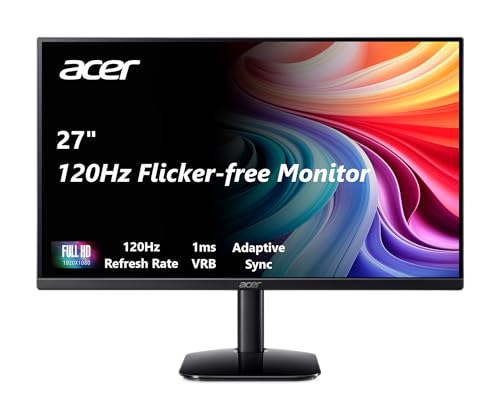
- Best curved desk screen: Samsung S36GD — 27-inch 1800R curve at 100Hz with HDMI and D-sub.
- Cheapest desk screen: Philips 221V8LB — 22-inch class 1080p at 100Hz with Adaptive-Sync.

Comparison
| Monitor | Type | Size | Refresh | Panel | Laptop connection |
|---|---|---|---|---|---|
| ASUS ZenScreen MB169CK | Portable | 15.6 in | Not listed | IPS | 2x USB-C, mini-HDMI |
| Acer PM191Q | Portable | 18.5 in | 100Hz | IPS | 2x USB-C, HDMI 1.4 |
| ASUS ZenScreen MB16ACE | Portable | 15.6 in | Not listed | IPS | USB-C (USB-A supported per listing) |
| Philips 241V8LB | Desktop | 23.8 in | 100Hz | VA | HDMI, VGA |
| Samsung S36GD | Desktop | 27 in, curved | 100Hz | Not listed | HDMI, D-sub |
| Philips 221V8LB | Desktop | 21.5 in | 100Hz | VA | HDMI, VGA |
The picks in detail
ASUS ZenScreen MB169CK
A well-rounded travel screen. It’s a 15.6-inch 1080p IPS panel with an anti-glare surface, so hotel lighting causes fewer reflections. One USB-C cable carries power and video. There’s a second USB-C port and mini-HDMI too. ASUS lists 0.78 kg and 11.8 mm thin. A 360° kickstand and tripod socket give you placement options, and auto-rotate switches between portrait and landscape. It carries TÜV eye-care certification and a three-year warranty. It has a 4.9-star average from about 350 reviews.
Good fit if you travel with a USB-C laptop and want a second screen that fits a laptop sleeve.
Skip it if your laptop’s USB-C port doesn’t carry video. Check before you buy.
Acer PM191Q
At 18.5 inches, this is the biggest portable here, closer to a small desk monitor. It’s 1080p IPS at 100Hz with Adaptive-Sync. Acer lists two USB 3.1 Type-C ports and an HDMI 1.4 port. One USB-C cable can carry display, data and power. It weighs 2.49 lbs and is 0.54 inches thin. The price wasn’t listed when we checked.
Good fit if you want more screen than a 15.6-inch portable and move between home and office.
Skip it if you fly often and count every ounce. It’s heavier than the 15.6-inch picks.
ASUS ZenScreen MB16ACE
The listing says its hybrid-signal design works with laptops that have either USB-C or USB-A ports. That helps if your laptop is older or the USB-C port doesn’t output video. It’s a 15.6-inch 1080p IPS panel with an anti-glare surface and auto-rotation. A foldable smart case doubles as a stand in portrait or landscape. The warranty is three years, and about 1,500 owners give it 4.7 stars on average.
Good fit if you have a mix of laptops in the household, or one without video over USB-C.
Skip it if you want a kickstand built into the monitor itself. Check the maker’s driver requirements for USB-A use.
Philips 241V8LB
For a home desk, a cheap 24-inch monitor gives far more screen than a portable for less money. This Philips is a 23.8-inch 1080p VA panel at 100Hz with 178/178-degree viewing angles. It has HDMI and VGA inputs and VESA mounting. Philips backs it with a 4-year advance replacement warranty. EasyRead mode aims for a more paper-like look on long documents.
Good fit if your laptop has HDMI and you want a second screen that stays at home.
Skip it if your laptop only has USB-C. You’ll need an adapter.
Samsung S36GD
A step up in size: 27 inches, 1080p, an 1800R curve and 100Hz. Samsung lists Game Mode, TÜV-certified eye comfort, and HDMI plus D-sub (VGA) inputs. It has the largest review count on this page, about 2,100, averaging 4.0 stars. At 27 inches, 1080p text is softer than on a 24-inch screen, but the bigger size helps if you sit back.
Good fit if you want a large, inexpensive second screen for video and browsing.
Skip it if you work with small text up close, or need USB-C.
Philips 221V8LB
The lowest-cost pick. It’s a 22-inch class screen (21.5 inches viewable) at 1080p and 100Hz, with Adaptive-Sync and a VA panel. Inputs are HDMI and VGA, with VESA mounting and LowBlue Mode. Like the 24-inch Philips, it carries a 4-year advance replacement warranty.
Good fit if desk space is tight or you need several cheap screens.
Skip it if you want more than a basic second display.
How to choose an external monitor for a laptop
Check your laptop’s ports first
Look at the side of your laptop and its spec sheet. A USB-C port with DisplayPort Alt Mode or Thunderbolt can drive a portable monitor with one cable. Plain USB-C data ports can’t. HDMI works with every desktop pick here. Older laptops with only VGA can use the Philips or Samsung screens.
Power for portable monitors
Portables usually draw power from the laptop over USB-C. That’s convenient, but it drains the battery faster. Many portables have a second USB-C port for a wall charger. Use it when you can.
Portable vs. desktop
Portables win on travel and setup speed. Desktop screens win on size, price per inch and comfort for long sessions. If you work from home most days, a desk monitor plus a laptop stand is usually more comfortable. For more desk options, see our desktop monitors under $200.
Positioning
Line the external screen up with your laptop screen’s height, or raise both. A kickstand puts a portable low on the desk. A tripod socket or VESA mount lets you raise it. For long days, set the main screen in front of you and the secondary one off to the side.
Before you buy
- Confirm video over USB-C on your laptop (look for DisplayPort Alt Mode or Thunderbolt).
- Check cable needs. HDMI-only setups for portables often need a separate USB cable for power.
- Check Mac support. Base MacBook Air models with M1 or M2 chips support only one external display natively.
- Bring a charger. A portable monitor will draw from your laptop battery unless powered separately.
- Budget for an adapter if your laptop has only USB-C and you pick an HDMI or VGA desk monitor.
Planning a two-screen desk for the office instead? Our dual monitor guide for business covers matching screens.
FAQ
Can any laptop use an external monitor?
Almost any, but the port decides which monitor. HDMI and USB-C with video output are the most common. Check your laptop’s specs for the maximum number of external displays.
Do portable monitors need their own power?
Usually not. Most run from the laptop over USB-C. A wall charger on the second port saves your laptop battery.
Can I use a portable monitor with a phone or game console?
Many portables accept HDMI from consoles and USB-C from phones that support video output. Power usually needs a separate cable in those setups.
Is a portable monitor good for all-day work?
It works, but a 24-inch or 27-inch desk monitor is easier to read and position for long sessions.

Comments are closed.
No reviews yet. Be the first to share your experience!