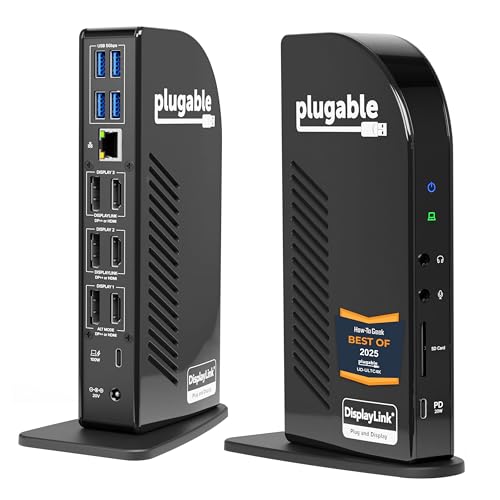
When evaluating Best Laptop Docking Stations for Business Laptops in October 2026, the Plugable 13-in-1 USB C Docking Station 4K Triple emerges as our top recommendation for multi-screen productivity. It provides robust 100W power delivery alongside versatile triple 4K video outputs, making it ideal for pairing with best external monitors across enterprise environments.
For professionals seeking an affordable desktop hub or dual display expansion, the Anker Laptop Docking Station Dual Monitor offers impressive capability at an accessible price point. We evaluated 7 leading models across top brands like Plugable, Anker, Baseus and more to highlight options that simplify your daily workflow.




Best Laptop Docking Stations for Business Laptops Buying Guide
Display Outputs and Multi-Monitor Support
Choosing the right video connectivity determines how effectively you can expand your screen real estate for multitasking. Modern business hubs support single, dual, or triple monitor setups through HDMI and DisplayPort connections.
When pairing your laptop with high resolution monitors for productivity, verify whether the dock uses native DisplayPort Alt Mode or driver-based DisplayLink graphics. Native connections offer lag-free video rendering, while driver solutions allow multi-monitor expansion on operating systems with native display limits.
Power Delivery and Pass-Through Charging
A single-cable workstation setup relies heavily on sufficient Power Delivery to keep your laptop charged under heavy workloads. High-performance laptops require between 65W and 100W of power pass-through to maintain peak CPU performance while powering attached peripherals.
Lower wattage docks may charge your system slowly or cause battery drain during intensive tasks like video conferencing. Always check host charging specifications and ensure your power adapter provides extra headroom for secondary USB accessory ports.
Data Port Speeds and Bandwidth Allocation
Transfer speeds dictate how quickly you can move large files between external storage drives and your primary computer. Docks featuring 10Gbps USB 3.2 Gen 2 ports deliver twice the throughput of standard 5Gbps ports, saving crucial minutes during daily data backups.
If your workflow involves external SSDs or high-speed peripherals, balance port selection across both USB-C and USB-A interfaces. Choosing options tailored for desktop and external monitors prevents peripheral bottlenecks when multiple accessories operate simultaneously.
| Feature Category | Entry Level Hubs | Enterprise Workstation Docks |
|---|---|---|
| Power Delivery | 45W – 85W Pass-through | 96W – 160W Dedicated |
| Monitor Support | Dual 1080p / Single 4K | Triple 4K @ 60Hz |
| Data Transfer Speeds | 5Gbps (USB 3.0) | 10Gbps (USB 3.2 Gen 2) |
Operating System and Driver Compatibility
Compatibility across Windows, macOS, and ChromeOS varies depending on how the docking station processes video output. Standard USB-C docks operate plug-and-play on Windows, but macOS often requires DisplayLink software to extend content across multiple external screens.
Without proper software support, macOS platforms may default to mirroring displays across connected external monitors. Enterprise deployment managers should verify driver installation requirements before standardizing hardware across mixed corporate fleets.
Form Factor and Cable Routing
Physical design impacts both desk organization and long-term durability in active workplace environments. Vertical docking designs clear valuable desk space, whereas horizontal hubs easily slide underneath monitor stands for discreet cable management.
Consider host cable length and connector reinforcement when selecting a docking station for daily remote or office use. Detachable host cables provide flexibility for longer desk runs and allow cheap replacement if the primary cable becomes worn.
How We Evaluated
We analyzed manufacturers’ technical specifications, host interface standards, thermal design traits, and bandwidth distribution limits across 7 popular business docks. Our evaluation focused on real-world utility, evaluating display refresh rates, power stability, host compatibility, and peripheral connectivity options.
By matching system requirements against everyday enterprise workflows, we isolated the critical trade-offs between compact travel hubs and desktop power stations. This data-driven analysis ensures our recommendations address diverse operating environments without technical ambiguity.
Common Mistakes to Avoid
Assuming all USB-C ports support video output is a frequent oversight that leads to non-functional external displays. Standard USB-C ports on budget laptops often lack DisplayPort Alt Mode capabilities required for direct video transmission.
Overlooking macOS display limitations can result in mirrored monitor layouts instead of extended desktop workspaces. Buyers running Apple hardware should confirm whether a dock relies on DisplayLink drivers to bypass single-display restrictions.
Underestimating total power requirements can cause unexpected peripheral disconnects or battery drain during resource-heavy tasks. Utilizing a low-wattage power adapter with a high-draw docking station limits performance across connected USB accessories.
Buying Checklist
- Confirm your laptop USB-C port supports DisplayPort Alt Mode and Power Delivery.
- Verify maximum supported resolution and refresh rates for your multi-monitor layout.
- Check whether your host operating system requires DisplayLink driver installation.
- Ensure pass-through power delivery wattage matches or exceeds your laptop charger rating.
- Count required USB-A and USB-C peripheral connections before making a purchase.
- Determine if Gigabit Ethernet port access is necessary for reliable wired network speeds.
- Review host cable length to guarantee clean desk organization and reach.
Final Thoughts
Selecting the ideal desktop hub depends on your specific display count, power needs, and computer operating system. For comprehensive triple-display capabilities and enterprise-grade charging, the Plugable 13-in-1 USB C Docking Station 4K Triple stands out as the overall top choice for modern professionals.
If high-wattage power distribution and ultra-fast data transfers are your top priorities, the Anker Prime Docking Station delivers exceptional performance for demanding multi-device environments. Meanwhile, users needing a compact dual-monitor configuration will find great value in the Anker Laptop Docking Station Dual Monitor.
For more insights on setting up an efficient workspace, check out our comprehensive How To tutorials to optimize your hardware configuration.
Frequently Asked Questions
What is the top choice among Best Laptop Docking Stations for Business Laptops in 2026?
The Plugable 13-in-1 USB C Docking Station 4K Triple is widely considered the top choice for business environments in 2026. It offers robust triple 4K display support, 100W host charging, and broad operating system compatibility.
Can I connect multiple 4K monitors to a single laptop docking station?
Yes, many enterprise-grade docking stations support dual or triple 4K monitors using HDMI and DisplayPort connections. However, total resolution and refresh rates depend on your laptop hardware bandwidth and docking station specs.
Do docking stations work with all USB-C laptop ports?
Not all USB-C ports support video output or power delivery. To connect external monitors and charge your laptop, your host computer must feature a USB-C port with DisplayPort Alt Mode or Thunderbolt compatibility.
Why do extended displays mirror on macOS when using dual HDMI hubs?
macOS does not natively support Multi-Stream Transport (MST) over standard USB-C hubs. To extend different screens on Mac systems, you need a dock that utilizes DisplayLink technology or separate Thunderbolt connections.
How much Power Delivery wattage does a business laptop dock need?
Most standard business laptops require between 60W and 85W of charging power. Larger workstation laptops or power-hungry systems benefit from 100W or higher pass-through power delivery to maintain full performance.
Do laptop docking stations require software driver installation?
Basic USB-C docks operate plug-and-play without extra software. Docks featuring DisplayLink technology for multi-monitor expansion on Mac or specialized fleet management require driver installation before deployment.
Where can I learn more about high resolution display setups?
You can explore our detailed guide on 4K, 6K and 8K display configurations to understand resolution scaling and multi-monitor setup options for your workplace.