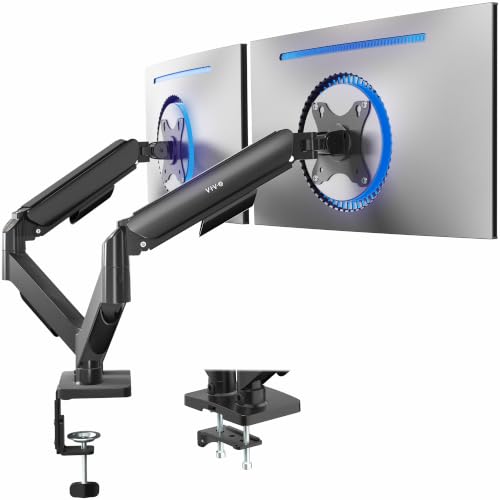
Achieving the ideal dual-display layout requires precise height and tilt controls to prevent neck fatigue during long workdays. The HUANUO FlowLift™ Dual Monitor Stand is our top choice for most workspaces because its gas spring arms provide effortless articulation and reliable desk stability. Readers setting up new displays can also explore our guide on desktop monitors to pair with adjustable mounts.
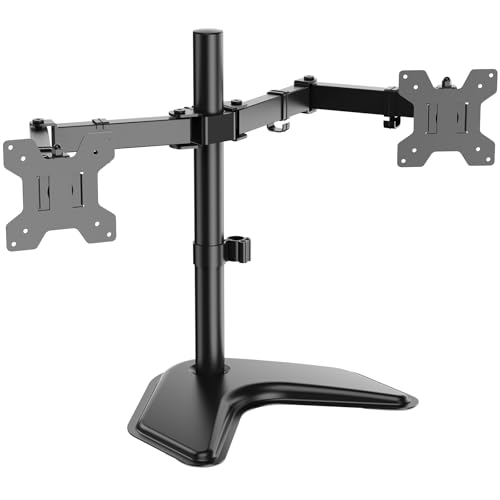
For users who prefer a solid desktop shelf without clamp installation, the Across-Star Dual-Monitor Stand for Desk offers adjustable angles and expansive storage underneath. We evaluated 5 solutions in September 2026 to find the most ergonomic configurations for home and office setups.


Best Viewing Angle for Dual Monitors: Ergonomic Setup Guide
Screen Height and Eye-Level Alignment
Aligning the top third of your screens directly with your resting eye line prevents excessive cervical tilting. When monitors sit too low, users naturally hunch forward, which strains upper back muscles over long working sessions. Proper elevation ensures your head stays balanced over your shoulders throughout the day.
Adjustable mounts allow you to fine-tune vertical clearance to match your seated torso height. You can learn more about display placement on our how-to hub. Consistent height adjustment keeps your neck in a neutral posture during intensive tasks.
Symmetrical vs. Primary-Secondary Layout Angles
Choosing between a symmetrical side-by-side curve and a focused primary-secondary orientation depends entirely on daily workflow. A symmetrical setup angles both panels inward at roughly twenty to thirty degrees, meeting directly at your nose line. This layout suits multitasking users who divide attention equally between two browser windows.
If your job centers on a primary task like coding or video editing, place your main screen directly in front of you. Angle the secondary display inward at thirty to forty degrees on your dominant eye side. This minimizes repetitive neck rotation and protects against asymmetrical muscle strain.
Viewing Distance and Focal Depth
Positioning your displays at an arm length, roughly twenty to thirty inches away, establishes optimal visual clarity. Displays placed too close force continuous ciliary muscle contraction, leading to ocular fatigue. Conversely, screens placed too far encourage users to crane their necks forward.
Both screens must share an equal focal distance from your eyes to avoid constant refocussing. Arranging the panels in a gentle inward arc maintains an identical radius from your seat. This circular viewing boundary keeps text sharp across both screens without repositioning your torso.
Tilt and Glare Reduction
Tilting screens backward between ten and twenty degrees creates a natural perpendicular angle with your downward gaze. Humans naturally look downward by about fifteen degrees when focusing on close objects. A slight backward tilt matches this biological preference and eliminates surface reflections from overhead fixtures.
Selecting panels with wide viewing angles also preserves color accuracy when tilted, as discussed in our guide to IPS and LED panels. Proper tilt settings prevent reflections from bright office lights or nearby windows. Simple mechanical tilt mechanisms make these micro-adjustments fast and convenient.
Stand Articulation and Mounting Stability
Mechanical spring and gas lift arms offer fluid adjustability for frequent workspace changes. If you alternate between sitting and standing, full-motion arms let you reposition both displays instantly. Heavy-duty C-clamps and grommet bases lock the entire assembly firmly to your desktop without wobbling.
Freestanding desk risers provide a sturdy alternative for glass surfaces or desks with obstructive under-frame beams. While risers take up slightly more surface area, they provide built-in organization for keyboards and accessories. Make sure your chosen mounting mechanism matches your desk thickness and material.
VESA Compatibility and Weight Limits
Verifying VESA mounting patterns is essential before attaching monitors to aftermarket arms. Most productivity screens feature standard 75×75 millimeter or 100×100 millimeter square mounting holes on the back panel. High-end displays from our quality monitors guide regularly include these standard mounting configurations.
Check individual arm weight capacities against the actual weight of your screens without their factory stands. Exceeding weight ratings causes monitor arms to sag downwards, disrupting carefully calibrated angles. Choosing arms rated above your monitor weight ensures smooth motion and long-term positioning hold.
How We Evaluated
We analyzed published manufacturer specifications, mechanical adjustment ranges, and verified user setup data across 5 dual-monitor mounting systems. Our evaluation focused on tilt capability, swivel rotation, weight support, and ease of installation on standard workstations.
We examined how effectively each mounting design maintains ergonomic viewing angles under daily use. By comparing base stability, clamping tolerances, and cable routing features, we identified solutions that offer dependable posture support across different desk configurations.
Common Mistakes to Avoid
Placing dual monitors flat against a back wall without an inward curve forces excessive neck turning to view outer edges. This flat arrangement widens the focal distance at the perimeter, causing ocular strain. Always angle both panels inward to maintain an equal distance from your eyes.
Setting the monitor height too high causes users to tilt their chin upward, which pinches cervical vertebrae. The top bezel should sit level with or slightly below eye level so your gaze falls naturally downward.
Ignoring desk frame clearance before purchasing clamp mounts leads to installation failures. Beams or modesty panels beneath the desktop can block standard C-clamps. Always inspect your desk underside or select a freestanding base if obstructions exist.
Buying Checklist
- Measure desktop thickness to ensure compatibility with C-clamp or grommet hardware.
- Confirm your monitors have standard 75x75mm or 100x100mm VESA patterns on the rear panel.
- Weigh each monitor without its factory stand to confirm it falls within arm capacity.
- Determine whether your workflow benefits more from side-by-side or stacked vertical orientation.
- Check for sufficient clearance behind the desk if using articulated extending arms.
- Verify that your video cables are long enough to route through integrated cable channels.
- Ensure desk material can support concentrated clamp pressure without cracking or bending.
Final Thoughts
Implementing proper screen angles transforms daily comfort and boosts overall desk productivity. For dynamic flexibility and effortless adjustment, the HUANUO FlowLift™ Dual Monitor Stand delivers outstanding gas spring balance and sturdy desk clamping. It allows users to reposition screens throughout the day without loosening manual bolts.
Workspaces with delicate glass tops or shallow under-desk clearance benefit from the WALI Freestanding Dual Monitor Stand for 13-27 or the Across-Star Dual-Monitor Stand for Desk. These options provide stable elevation and ergonomic angles while keeping setup simple. You can discover more display solutions in our collection of external monitors.
Users requiring vertical screen stacking should consider the HUANUO 17-32 Inch Dual Monitor Stand for its tall center pole design. Aligning your dual displays with correct focal depth and downward tilt creates a sustainable workspace that protects your neck and eyes.
Frequently Asked Questions
What is the optimal angle between dual monitors?
For a side-by-side setup, angle each display inward at twenty to thirty degrees toward your seat. This slight curve ensures the outer edges remain at the same focal distance as the center, reducing neck rotation.
Should dual monitors be placed side-by-side or stacked vertically?
Side-by-side placement works best for general multitasking, spreadsheets, and web browsing. Vertical stacking suits users with narrow desks or specialized tasks like audio editing and stock tracking.
How high should dual monitors sit above the desk?
The top edge of the display glass should align with your natural eye level when sitting upright. This height allows your gaze to rest roughly fifteen degrees downward toward the center of the screens.
What is the top-rated option for Best Viewing Angle for Dual Monitors: Ergonomic Setup in 2026?
The HUANUO FlowLift™ Dual Monitor Stand is our top-rated pick for 2026 due to its smooth gas spring adjustments and durable mounting base.
How far away should dual monitors be positioned?
Place your screens roughly twenty to thirty inches from your eyes, which is approximately an arm length away. This distance helps prevent digital eye strain and keeps full screen contents readable.
Can you achieve an ergonomic setup on a standing desk?
Yes, using full-motion monitor arms allows you to quickly adjust screen height when transitioning between sitting and standing. Check out our guide to computer displays for more workspace optimization tips.
Why do my neck muscles hurt when using two monitors?
Neck pain typically occurs when monitors sit too far apart, too low, or completely flat against the wall. Angling the screens inward and elevating them to eye level prevents repetitive strain.