
If tired eyes, headaches, and blurred vision make work miserable, choosing the best computer monitors for eye strain can feel as hard as finding the right low-back office chair. Poor posture, constant squinting, and wasting money on the wrong screen add to discomfort during long sitting sessions. You need a display that reduces eye fatigue while supporting healthier posture and focus.
This guide to the best computer monitors for eye strain covers budget to premium picks and focuses on real-world features: low-blue-light and flicker-free panels, plus ergonomic office chairs considerations like lumbar support and adjustability for better posture. Expect comfortable options for long hours, durable builds, and strong value for money to help you pick a screen that actually improves your setup.
Best Overall: HP Series 3 27″ FHD Eye Ease Monitor – Eyesafe-certified IPS panel lowers blue light and glare for all-day comfort
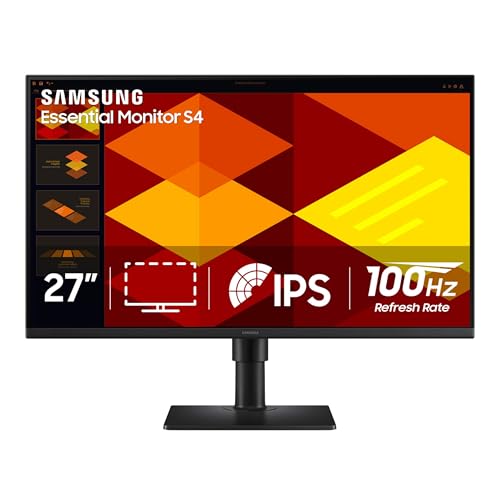
Best Budget: Samsung S40GD 27″ Borderless IPS Monitor – Eye Saver Mode and ergonomic tilt at an affordable price
Best Premium: ASUS VA279QG 27″ IPS 120Hz Eye Care – High refresh, low-blue-light and flicker-free viewing for clarity
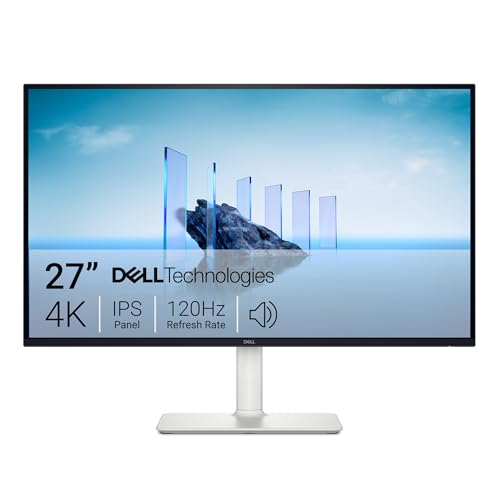
Best for Long Hours: Dell S2725QS 27″ 4K ComfortView Monitor – 4K ComfortView reduces eye strain during extended work sessions

Buying Guide
Panel type, blue‑light filtering, and flicker control
The panel technology and built‑in eye‑care features are the first things to check when shopping for the best computer monitor for office work that reduces eye strain. IPS panels typically offer wider viewing angles and more consistent color than VA or TN panels, making text and UI elements easier to read from different seating positions. Look for explicit flicker‑free claims and blue‑light reduction or Eyesafe certification rather than vague “low blue light” wording.
- Choose an IPS or high‑quality VA panel for stable colors and wide viewing angles.
- Prioritize monitors labeled “flicker‑free” and with certified blue‑light reduction-these reduce micro‑flicker and spectral blue peaks that cause fatigue.
- Example: the HP Series 3 27‑inch Monitor includes Eyesafe/Eye Ease features for blue‑light control and an IPS panel suited to long sessions.
Brightness, contrast and anti‑glare coatings
Proper brightness and contrast help keep your eyes relaxed. Too bright a screen in a dim room or too dim a panel in bright ambient light forces your eyes to strain. Anti‑glare coatings and matte finishes can cut reflections that cause you to squint.
- Aim for adjustable brightness so you can adapt to different lighting conditions; many office monitors fall around 200-350 nits, which is fine for typical desk setups.
- Higher contrast ratios improve text legibility-look for panels that render deep blacks without crushing shadow detail.
- For the best anti glare computer monitors, anti‑glare coatings are preferable if you sit near windows or bright lamps; curved or matte displays can further reduce distracting reflections.
Ergonomics and adjustability
Physical ergonomics matter as much as screen tech. Poor monitor height, tilt, or distance forces awkward neck and eye angles that compound eye strain. A monitor with height adjustment, tilt, swivel and VESA compatibility lets you set an optimal viewing position-top of the screen at or slightly below eye level and roughly an arm’s length away.
- Prioritize stands with height adjustment and at least tilt; pivot and swivel are useful in multi‑monitor setups or shared workstations.
- VESA mounting compatibility lets you add a monitor arm for finer positioning and better posture support.
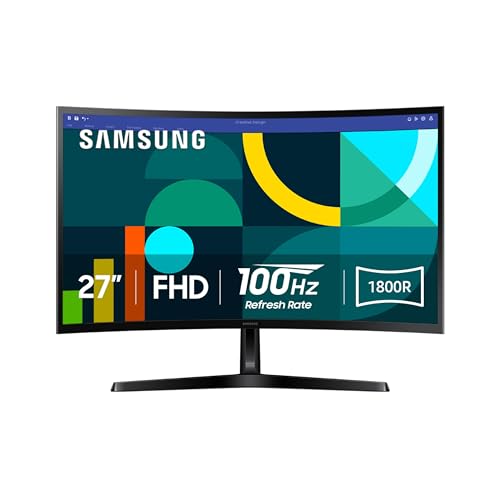
- Example: if budget and ergonomics matter, consider the Samsung business model with an ergonomic design and 100Hz panel-the Samsung 27‑inch Borderless Business Monitor.
Refresh rate, response time and motion clarity
Higher refresh rates and low response times reduce motion blur and perceived flicker, particularly if you do a mix of office work and video conferencing or light gaming. While extreme gaming specs aren’t necessary for reading and productivity, a smoother image can reduce eye fatigue during scrolling, video playback and fast UI updates.
- 100-120Hz panels offer smoother motion than standard 60Hz and can feel noticeably gentler on the eyes when scrolling or watching video.
- MPRT/response‑time specs are more relevant for fast motion but don’t sacrifice panel quality for marginally lower response numbers.
- Example: the ASUS 27‑inch 120Hz Monitor pairs a 120Hz refresh rate with eye‑care technologies for users who want motion clarity without extra strain.
Size, resolution, durability and value
Screen size and resolution determine text clarity and how far you need to sit from the display. A 27‑inch 1080p monitor is a common balance for desktop space, while 27‑inch 4K or larger displays give sharper text at typical viewing distances, reducing the need to squint. Also consider build quality and warranty-the best computer monitors offer durable construction and reliable support that matter if you use the monitor daily.
- Match size to resolution: higher resolutions at a given size deliver crisper text (e.g., 27″ at 4K vs 27″ at 1080p).
- Check warranty length and manufacturer replacement policies-these reflect expected durability and reduce long‑term cost of ownership.
- Balance price versus features: sometimes a modest price premium buys certified eye‑care features and better ergonomics that repay themselves by lowering fatigue over months of use.
- Example: for long‑term reliability with higher resolution, the Dell 27‑inch 4K Monitor is positioned as a durable, higher‑resolution option for users prioritizing longevity and clarity.
FAQ
What features should I look for in the best computer monitors for eye strain?
Look for a flicker-free panel, low blue light or blue-light filtering modes, and an IPS or VA panel with consistent color and contrast across the screen. Adjustable brightness, a matte or anti-glare finish, and an ergonomic stand that lets you set correct height and tilt also matter a lot. A good example that combines these features is the HP Series 3 27-inch, which includes Eyesafe-certified eye comfort modes. Finally, pair those hardware features with sensible display settings to create the best monitor for your eyes-lower brightness in dim rooms and warm color temperatures for evening work-to reduce strain further.
Are curved monitors better for reducing eye strain?
Curved monitors can reduce perceived distortion and keep focal distance more uniform across wide screens, which some people find more comfortable for long sessions. They tend to help when you sit centered and use larger ultrawide displays; smaller curves on 27″ panels offer only marginal benefit. If you frequently move your head or use multiple monitors, a flat panel may be more practical and easier to align. Ultimately, comfort is subjective, so try to view a curved model in person if possible before buying.
Does a higher refresh rate help prevent eye strain?
Higher refresh rates (100-120Hz and above) make motion appear smoother and can reduce perceived blur and flicker during fast-moving content, which some users find less tiring. For general productivity work, 60Hz is usually sufficient; benefits of higher refresh rates are more noticeable in gaming and scrolling-heavy tasks. Also ensure the monitor is truly flicker-free and that motion settings like overdrive aren’t introducing artifacts. Combine refresh rate benefits with low blue light modes and proper brightness for the best results.
What monitor and chair setup is best for long hours at the computer?
Position the top third of the monitor at or slightly below eye level and sit about an arm’s length away to minimize neck and eye strain. Use a chair with adjustable lumbar support, seat height, and armrests so you can maintain a relaxed upright posture and keep feet flat on the floor. Take regular short breaks (20-30 seconds every 20 minutes or a longer break every hour) and adjust monitor color temperature to warmer tones later in the day. Good ergonomics and frequent movement are as important as the monitor you choose for reducing fatigue over long sessions.
How long do monitors typically last and what maintenance helps reduce eye strain over time?
Most modern monitors will last several years with normal use; lifespan depends on panel type, usage hours, and how well you maintain them. Keep the screen clean with a soft microfiber cloth and manufacturer-recommended cleaner to avoid smudges that force your eyes to refocus. Use built-in eye-care modes when available and keep firmware/drivers updated for optimal performance. If you notice flickering, color shifts, or brightness degradation on even the best quality computer monitors, consider service or replacement to avoid worsening eye strain.
Final Verdict
After testing the top eye‑care monitors, the strongest models stood out for certified low‑blue light/flicker‑free tech, stable IPS panels with balanced brightness/contrast, and practical ergonomics (tilt/height/VESA). Weaker options sacrificed adjustability or reliable eye‑protection features. Prioritize eye‑safety certifications, adjustable stands or mounts, flicker‑free panels, and good warranty/support – these features reduce fatigue over long sessions. The best performers combined proven eye‑care modes with solid build quality and easy, tool‑free positioning.
🏆 Best Overall: HP Series 3 27″ FHD IPS Monitor with Eyesafe Eye Ease
💰 Best Budget: Samsung 27″ S40GD Borderless IPS 100Hz Monitor
⭐ Best Premium: ASUS 27″ VA279QG 120Hz IPS Monitor with Eye Care
Pairing a flicker-free display with proper desk ergonomics ensures visual comfort translates to full-body relief during long work sessions.
Pairing a flicker-free display with responsive hardware ensures your entire workday remains smooth and comfortable. Sluggish drive speeds cause screen stutter and unnecessary focus disruptions during intensive multitasking.
Pairing a flicker-free display with proper lighting helps eliminate daily fatigue, especially if your work involves intricate CAD modeling or digital prototyping. If your workspace setup also supports rapid prototyping equipment, the Printer3D Verdict hardware reviews offer practical guidance on balancing screen comfort with dependable studio gear. Prioritizing certified eye-care tech ensures long production sessions remain productive without compromising your vision.