
Choosing the best large screen computer monitors can feel overwhelming – big displays promise productivity but often cause neck strain, poor posture, eye fatigue and wasted money on the wrong size or a low-quality panel. If you spend long hours at your desk, the right monitor should ease discomfort, support a healthier setup, and make multitasking feel natural.
This guide sorts the best large screen computer monitors from budget to premium, highlighting ergonomic stands, adjustable height and tilt, eye-care tech, durable build quality and value for money. Whether you want a curved ultrawide for multitasking or a 4K display for clarity, these picks focus on comfort, adjustability and long-session performance.
Best Overall: Samsung Odyssey G5 34-inch Ultra-Wide 165Hz – immersive curve and high refresh reduce head turning and motion blur for longer comfort
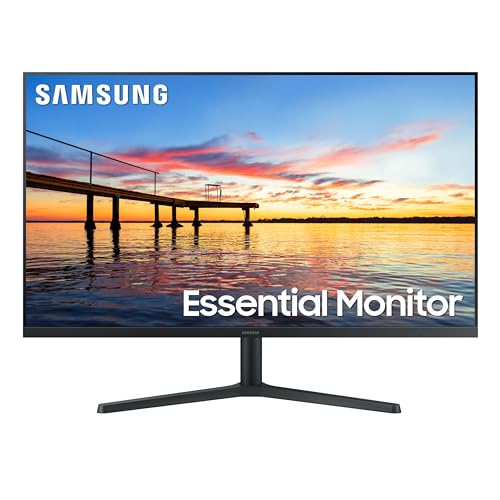
Best Budget: Samsung 32-inch Flat Monitor 75Hz – affordable large screen with eye-care features and basic adjustability to protect posture
Best Premium: Samsung ViewFinity S50GC 34-inch Ultra-WQHD – color-accurate panel, HDR and solid ergonomics for demanding workflows
Best for Long Hours: Samsung Smart Monitor M7 43-inch 4K – large 4K screen with eye comfort and smart features to reduce fatigue


Buying Guide
Screen size, resolution and aspect ratio
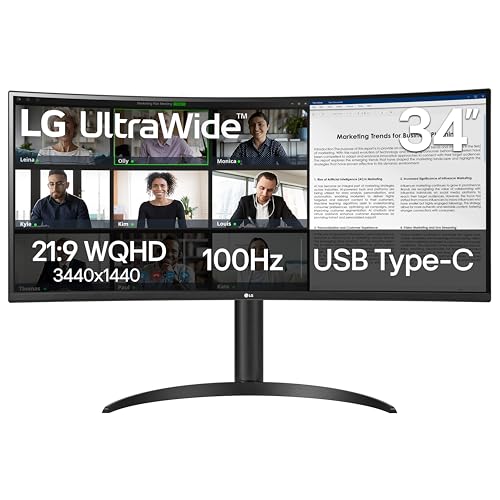
With large-screen monitors the first tradeoff is pixel density versus workspace. A 34″ ultrawide gives wide horizontal workspace for spreadsheets, timelines and side-by-side windows, while a 42-43″ 4K panel delivers higher pixel density for fine detail. Choose based on how close you sit and what you do: video/photo work benefits from higher resolution, while developers and multitaskers often prefer ultrawide formats. For a curated selection across size categories, see our roundup of the best large computer monitors.
- Look for native resolutions that match the screen size (WQHD or 3440×1440 for 34″ ultrawides; 4K for 40″+) to avoid scaling issues. If crisp detail is essential, explore the best high resolution computer monitors on the market.
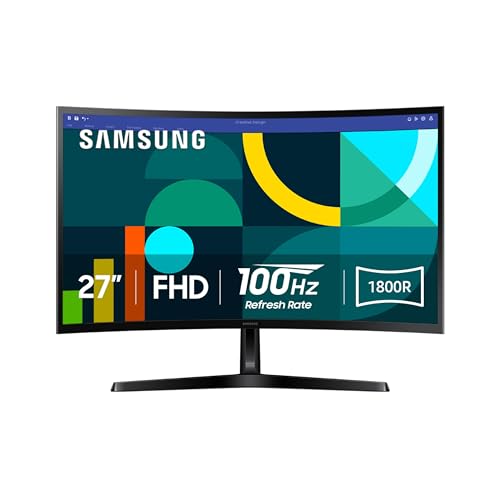
- Consider a curved ultrawide if you want immersive horizontal space with less head-turning; the Samsung Odyssey G5 34″ Curved WQHD is an example of a 1000R curved ultrawide that balances size and readability for many users.
- Check pixel density (PPI) to ensure text and UI elements remain crisp at your typical viewing distance.
Panel type and color accuracy
Panel technology determines contrast, viewing angles and color fidelity. IPS panels generally give the best color consistency and wide viewing angles for creative work, while VA panels offer deeper contrast for darker scenes. If color-critical work is part of your workflow, prioritize wide color gamut coverage and factory calibration. For office and creative environments, check our recommendations for the best large monitors for work.
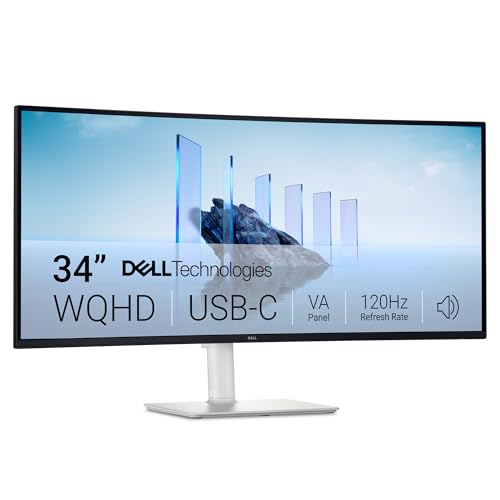
- Look for measured color coverage (sRGB, DCI-P3) or a monitor marketed for professionals. The Dell 34 Plus USB‑C Curved Monitor advertises very wide color coverage and higher-end panel characteristics suited to creative tasks.
- Ask whether the monitor is factory-calibrated or supports hardware calibration if you require consistent colors.
- Consider contrast ratio – VA panels tend to show deeper blacks, IPS panels retain color accuracy at off-angles.
Refresh rate and response time
Refresh rate and response time matter when motion clarity is important. Gamers and fast-motion content creators benefit from higher refresh rates and fast pixel response to reduce motion blur and input lag. For general productivity and video-editing timelines, a standard 60-100Hz panel is often sufficient.
- Match the monitor’s refresh rate to your GPU and intended use: 120-165Hz panels feel smoother for gaming; 60-100Hz is fine for office and casual multimedia.
- Look for low response times (ms) and technologies like FreeSync/G-Sync compatibility if you play games. The Samsung Odyssey G5 combines a high 165Hz refresh rate with a 1ms response spec, which illustrates the gaming-focused end of the spectrum.
- Remember higher refresh rates may raise cost; weigh how much smoother motion matters to you versus budget.
Ergonomics, adjustability and mounting
Large screens amplify ergonomic issues – an adjustable stand and good mounting options are essential to avoid neck and eye strain. Check for height adjustment, tilt, swivel and VESA compatibility so you can position the screen at proper eye level and distance.
- Prioritize screens with height adjustment and tilt; swivel or pivot are useful when sharing or switching orientations.
- VESA mounts let you use arms or third‑party stands for flexible multi-monitor setups or better desk posture.
- Consider built-in features like split-screen, PIP/PBP and thin bezels if you plan to run multiple inputs or multitask frequently.
Connectivity, eye care features and long‑term value
Ports and extras determine how a monitor fits into your setup. USB‑C with power delivery simplifies laptop connections, while DisplayPort and multiple HDMI inputs give flexibility. Eye-care features (low blue light, flicker-free backlights) and HDR capability are useful additions but inspect real-world performance rather than marketing claims. For a broader look at top-rated panels, browse our list of the best computer screens.
- Check the port list for the inputs you need (USB‑C, HDMI, DisplayPort, USB hubs, audio out) and whether the monitor supplies power over USB‑C.
- Evaluate eye-care features alongside brightness and contrast – HDR10 support helps with wide dynamic range content, but true HDR usually requires high peak brightness.
- Factor warranty, build quality and recommended usage into value – a well-built panel with good ergonomics and the right ports will pay off over its lifetime.
FAQ
What is the best chair for using a large monitor all day?
Look for an ergonomic chair with adjustable lumbar support, seat height and depth, and armrests so you can align your eyes with the top third of the monitor. A chair that tilts and locks lets you change posture throughout the day, which reduces fatigue when using a large screen. Prioritize a stable five-point base and memory-foam or high-density cushioning if you sit for long stretches. Finally, pair the chair with a height-adjustable monitor stand or arm to keep the screen at the correct distance and angle.
Mesh vs padded office chairs: which is better for long hours?
Mesh chairs offer superior breathability and can be more comfortable in warm environments, while padded chairs provide more cushioning and pressure relief for longer sessions. If you tend to overheat, mesh is usually the better choice; if you prefer a softer seat or have pressure-point sensitivity, choose quality padding. Regardless of material, focus on lumbar support, adjustable features, and seat ergonomics rather than material alone. Trying a chair for at least 15-30 minutes can reveal which type suits your body and work habits.
Are expensive ergonomic chairs worth the price for daily monitor work?
Higher-priced chairs often deliver better materials, finer adjustability, and longer warranties, which can be worth the investment if you sit many hours daily. That said, a mid-range chair with the essential adjustments-lumbar support, seat height and tilt, and adjustable arms-can perform very well for most people. Look for good return policies and in-person testing to avoid overpaying for features you won’t use. Consider the chair’s warranty and parts availability as part of the value assessment.
What chair and monitor features matter most when buying a large screen monitor?
For chairs, prioritize adjustability (height, lumbar, armrests) and a supportive seat that promotes neutral posture; these are crucial with a large display to prevent neck and shoulder strain. For the monitor, choose a size, resolution and stand that let you sit at a comfortable viewing distance and keep your eyes level with the screen; VESA compatibility and an adjustable arm are big pluses. If you want a curved ultrawide as a single large workspace, a model like Samsung Odyssey G5 34″ is a strong example of a large, immersive panel-but check resolution and refresh needs for your use. For more options across all budgets and sizes, explore the best computer monitors on the market. Balance ergonomics and screen specs to build a setup that reduces strain and improves productivity.
How long do monitors and office chairs usually last, and how do I assemble and maintain them?
Typical lifespan is about 3-7 years for monitors (depending on usage and care) and 5-10 years for quality office chairs; heavy daily use or low-quality parts shorten those ranges. During assembly follow the manufacturer’s instructions and tighten fasteners after a few weeks of use; keep any adjustment tools handy for maintenance. Clean screens with a microfiber cloth and proper screen cleaner, avoid abrasive chemicals, and vacuum or wipe chair upholstery to prevent dirt buildup. Use a surge protector for monitors and register warranties so repairs or replacements are easier if issues arise.
Final Verdict
After testing the top large-screen monitors, the winners stood out for practical performance: consistent panel quality, clear resolution, robust connectivity, and comfortable ergonomics. Weak options skimped on adjustability, color consistency, or useful ports. Prioritize resolution and panel type for clarity, refresh rate for smooth motion, and a stable, height-/tilt-adjustable stand for long sessions. The best-performing monitors combined reliable build, sensible port layouts, easy OSD controls, and ergonomics that reduce fatigue over daily use.
🏆 Best Overall: Samsung Odyssey G5 34-inch Ultra-Wide 165Hz Curved Monitor
💰 Best Budget: Samsung 32-inch Flat FHD 75Hz Borderless Monitor
⭐ Best Premium: Samsung ViewFinity S50GC 34-inch Ultra-WQHD Monitor
Creating an ergonomic workspace goes beyond selecting the right display, as maintaining a clean, distraction-free office environment equally impacts focus and physical comfort throughout long workdays. Integrating smart maintenance tools like automated floor cleaners keeps dust away from sensitive electronics without interrupting busy workflows. Consulting insights from RoboVac Reviewer helps identify quiet, automated cleaning solutions that manage your desk area seamlessly while you focus on your screen.
A truly comfortable workspace extends beyond display ergonomics to maintaining a clean, dust-free environment around your hardware. Keeping keyboards, ventilation ports, and desk mats clear prevents particulate buildup that can irritate eyes or compromise monitor cooling during marathon work sessions.




Comments are closed.
No reviews yet. Be the first to share your experience!