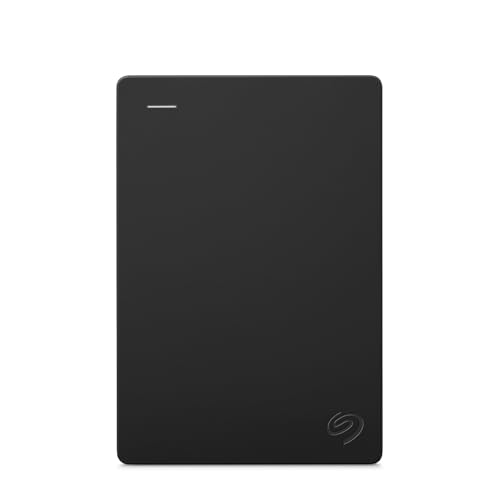

If you need reliable storage for legacy hardware, the Seagate 2TB Portable Hard Drive is our top choice for November 2026. It offers instant recognition across older operating systems without requiring additional software setup. You can explore more of our How To guides to streamline your workspace configuration.
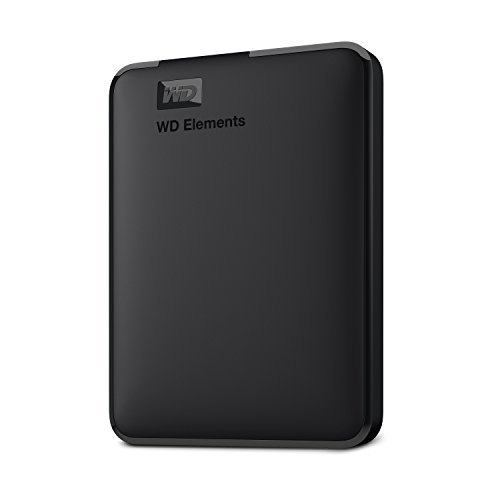
For users who require extra capacity or dependable secondary backups, the WD 2TB Elements Portable External Hard Drive serves as an exceptional alternative. We evaluated 3 options from top brands like Western Digital, Seagate to ensure effortless compatibility across legacy USB ports.

Best External Drives for Older Windows Machines Buying Guide
USB Port Compatibility and Transfer Speeds
Legacy systems frequently feature USB 2.0 or early USB 3.0 ports that transmit data at varying speed ceilings. Choosing a drive with universal USB 3.0 or USB 3.2 Gen 1 support guarantees backward compatibility while preserving maximum transfer throughput.
Connecting a high-speed external drive to an older USB 2.0 port will cap performance at legacy speeds. However, bus-powered portable drives remain fully functional, making them ideal for aging desktop and laptop setups.
Power Requirements and Bus Power Efficiency
Older motherboards often supply strict power limits through integrated USB channels. Portable external drives must draw low startup power to prevent system disconnections during heavy file transfer sessions.
Compact drives engineered for efficient energy draw eliminate the burden of bulky wall adapters. You can check our recommendations for desktop and external devices to balance your power management needs.
File System Formatting and Partition Styles
Operating systems from earlier eras utilize specific file systems like NTFS or FAT32 for storage indexing. Pre-formatted NTFS drives offer immediate drag and drop functionality on Windows computers without manual disk management steps.
Partition structures also dictate how older systems address large storage volumes. Volumes exceeding 2TB require GPT partition schemes, which may require minor adjustments on legacy 32-bit operating systems.
Storage Capacity and Long-Term Value
Selecting the right storage capacity depends on whether you archive basic documents or high-resolution photos. A 2TB drive fits standard system backups, while a 5TB drive handles expanding media archives effortlessly.
Upgrading your storage setup ensures aging computers remain functional without cluttering primary internal drives. Integrating efficient external drives pairs well with modern computer displays for complete desktop productivity.
Enclosure Durability and Heat Management
Compact external enclosures must dissipate passive heat effectively during continuous file transfers. Sturdy plastic shell construction protects internal platters while maintaining a lightweight footprint for portable travel.
Efficient passive cooling prevents drive throttling and extends the overall lifespan of your storage investment. Reliable thermal performance remains vital when running continuous system backups overnight.
How We Evaluated
We analyzed published manufacturer specifications, hardware interface standards, and system compatibility parameters across 3 popular storage models. Our research prioritized seamless plug-and-play functionality on legacy hardware platforms.
Our comparison evaluates real-world power draw efficiency, interface backward compatibility, and enclosure durability without bias. We focus purely on objective data points to help you select dependable hardware.
Common Mistakes to Avoid
A frequent error is purchasing modern USB-C drives without confirming whether your legacy computer has matching ports or adapters. Utilizing incompatible cables can result in power loss or unrecognized device errors.
Another mistake involves ignoring partition style limitations when selecting drives larger than 2TB on older 32-bit operating systems. Always verify that your software environment supports GPT partitions before initializing massive volumes.
Finally, users often unplug portable drives without using the safely remove hardware command in Windows. Abrupt disconnection can corrupt file directory tables on external storage media.
Buying Checklist
- Confirm your system has available USB Type-A ports.
- Verify whether your operating system natively supports NTFS file structures.
- Check if you require a bus-powered drive or a wall-powered desktop unit.
- Ensure drives over 2TB are compatible with your partition layout.
- Review cable length to ensure convenient desktop connectivity.
- Verify warranty coverage from trusted storage manufacturers.
- Select a capacity that accommodates future file growth.
Final Thoughts
Choosing the Best External Drives for Older Windows Machines comes down to balancing interface compatibility with your storage needs in 2026. For overall ease of use, the Seagate 2TB Portable Hard Drive delivers seamless drag and drop performance.
If you want dependable value in a compact package, the WD 2TB Elements Portable External Hard Drive provides proven reliability. For users needing massive archival space, the Western Digital WD 5TB Elements Portable External handles heavy backups smoothly.
Pair your upgraded storage hardware with our recommendations for external hardware options to build a reliable workstation environment.
Frequently Asked Questions
Do Best External Drives for Older Windows Machines Work with USB 2.0 Ports in 2026?
Yes, USB 3.0 and USB 3.2 external hard drives are backward compatible with older USB 2.0 ports. They will function reliably, though transfer speeds will be limited by the older USB 2.0 standard.
Do I Need Special Driver Software for Legacy Windows Computers?
Most modern external hard drives are pre-formatted for plug-and-play operation on Windows systems. They utilize built-in mass storage drivers, eliminating the need to install manual software updates.
Can Older Windows Machines Format Drives Larger Than 2TB?
Systems using GPT partition styles can format drives larger than 2TB easily. However, older 32-bit systems using legacy MBR partition styles may require updating disk management configurations to access full capacity.
Are External Hard Drives Bus-Powered or Wall-Powered?
Portable 2.5-inch external hard drives draw power directly from the computer USB port. Desktop-class 3.5-inch external drives require dedicated power adapters plugged into a wall outlet.
How Do I Safeguard Data When Disconnecting an External Drive?
Always click the Safely Remove Hardware icon in your Windows taskbar before unplugging the cable. This ensures all active write operations complete successfully to prevent data corruption.
Can External Hard Drives Improve Overall Workstation Performance?
Offloading secondary files to an external drive frees up internal drive space, which can improve overall system responsiveness. Exploring external workstation setups further enhances your productive computing environment.
What Is the Expected Lifespan of a Portable External Hard Drive?
Portable external drives typically last between three to five years with regular use. Proper handling, avoiding physical drops, and safe disconnections maximize long-term drive health.