Getting the right configuration for your dual displays starts with reliable positioning and proper display scaling. The ErGear Dual Monitor Arm, Full Adjustable Monitor is our top pick for most users because it delivers smooth angle adjustments and quick tool-free mounting. You can pair it with our recommendations for best external computer monitors for comfort at work to create an ergonomic workstation.
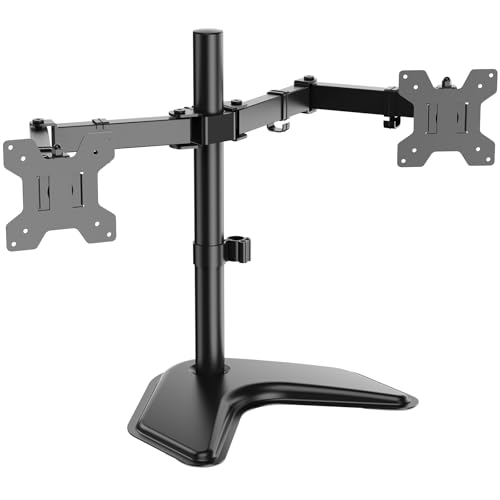
For budget-conscious shoppers needing solid stability without desk clamping, the WALI Freestanding Dual Monitor Stand for 13-27 offers dependable balance on any flat tabletop. We evaluated 5 solutions in October 2026 across top brands like VIVO, WALI, HUANUO and more to help you find the right physical foundation. Check Price on Amazon →



Best Settings for Dual Monitors Buying Guide
Display Arrangement and Virtual Alignment
Setting up your operating system layout properly prevents your mouse pointer from catching on display edges. In Windows or macOS display settings, drag the virtual screen boxes so they match the physical height and spacing of your panels. This step ensures continuous cursor tracking across both screens without awkward jumps.
If you use unmatched screen sizes, align the bottoms or centers in software based on how you sit. Matching your primary working area reduces cursor snagging during fast document navigation. Learn more about optimal resolutions in our guide to best high resolution monitors for comfort and value.
Resolution Scaling and Text Clarity
Running two screens with different native resolutions can cause text and user interface elements to look disproportionate. Set each panel to its recommended native resolution, then adjust the operating system scaling percentage individually. A 4K screen might need 150 percent scaling, while a 1080p panel looks sharpest at 100 percent.
Mismatched scaling can occasionally cause slight blurriness when dragging windows between monitors. Modern operating systems handle dynamic scaling well, but restarting text-heavy applications after changing scale factors helps maintain crisp text rendering. Keeping DPI values relatively close between screens offers the smoothest visual continuity.
Refresh Rate and GPU Synchronization
Connecting multiple displays taxes your graphics processing unit, especially when running mixed refresh rates like 60Hz and 144Hz. Make sure to open your advanced graphics control panel and manually assign the maximum supported refresh rate for each individual panel. Setting your primary screen to high refresh rate keeps gaming and scrolling fluid while the secondary screen handles static background tasks.
Check our breakdown of gaming monitors if you plan to mix high-speed competitive displays with standard office screens. Using matching display cables such as DisplayPort or high-speed HDMI ensures your graphics card delivers full bandwidth to both outputs without frame drops.
Ergonomic Height and Physical Angle
Physical placement is just as important as digital configuration for preventing chronic neck and shoulder fatigue. Your primary screen should sit directly in front of you with the top third of the panel at eye level. Angle your secondary screen inward at roughly 30 degrees to minimize repetitive head turning throughout the workday.
A versatile mounting arm lets you tilt and swivel each screen smoothly to eliminate glare from windows or overhead lights. Maintaining an arm-length distance of approximately 20 to 30 inches between your eyes and the glass ensures comfortable viewing angles for extended sessions.
Mounting Styles and Desk Compatibility
Selecting between a C-clamp, grommet, or freestanding base depends directly on your desk construction. C-clamps attach firmly to the desktop edge without drilling, but they require a flat wooden overhang without obstructing support beams. Freestanding bases rest directly on top of your desk surface, making them suitable for glass tables or desks backed up against walls.
Always verify the thickness of your tabletop against the mounting hardware specifications before making a purchase. Sturdy steel arms prevent screen wobble while typing, while gas spring mechanisms allow quick one-handed height adjustments whenever you switch between sitting and standing.
Cable Management and Signal Routing
A dual monitor workstation can quickly become cluttered with power bricks, display cables, and peripheral cords. Mounts with integrated cable channels keep your wiring neatly bundled along the articulation arms and center pole. Routing cables through dedicated clips prevents strain on monitor ports when you adjust the screen angle.
Leave a moderate amount of cable slack near the joints so your monitors can rotate freely into portrait mode without pulling connectors loose. Using quality cables of adequate length prevents accidental disconnects and keeps your workspace looking clean and professional.
How We Evaluated
We analyzed verified product specifications, structural build materials, and articulation ranges across 5 models. Our evaluation focused on weight capacities, VESA standard compliance, and the stability of various desk mounting mechanisms.
We also examined how well each option accommodates typical digital display settings, such as multi-angle rotation for portrait coding workflows and smooth extension for deep desks. This objective comparison highlights the best practical hardware foundations for productive multi-screen setups.
Common Mistakes to Avoid
Forgetting to verify your desk thickness and underside clearance is a frequent oversight when buying clamp mounts. If your desk features a structural support beam near the rear edge, a standard clamp may not sit flush, requiring a grommet mount or freestanding base instead.
Another common error is neglecting individual display scaling settings when mixing screens of different pixel densities. Leaving both panels on default scaling often makes windows appear either tiny or excessively large when moved across displays.
Many users also forget to manually enable the maximum refresh rate in their operating system display settings. Monitors frequently default to 60Hz out of the box, leaving premium high-refresh capabilities completely unused until configured.
Finally, failing to leave sufficient cable slack behind articulating monitor arms can damage video ports during adjustment. Always test the full range of motion before tightly securing cable ties or clips.
Buying Checklist
- Confirm your monitors feature standard 75x75mm or 100x100mm VESA mounting patterns.
- Check the weight of each display without its original stand against the mount capacity.
- Measure your desk thickness and inspect the underside for frame beams or bevels.
- Verify that your computer has sufficient video output ports for two distinct connections.
- Select high-speed DisplayPort or HDMI cables with sufficient length for arm articulation.
- Choose between a space-saving edge clamp or a versatile freestanding base.
- Ensure the mount provides independent height, tilt, and portrait rotation adjustments.
Final Thoughts
Implementing the Best Settings for Dual Monitors requires pairing proper operating system adjustments with dependable ergonomic hardware. For most workstations, we recommend the ErGear Dual Monitor Arm, Full Adjustable Monitor as the best overall choice due to its tool-free assembly, wide range of motion, and strong support for displays up to 32 inches.
If you require rock-solid stability for heavier displays, the HUANUO FlowLift™ Dual Monitor Stand provides outstanding dual C-clamp reinforcement and fluid gas spring movement. Users seeking an affordable, non-clamp solution will appreciate the WALI Freestanding Dual Monitor Stand for 13-27, which rests stably on any flat tabletop.
For more display setup tips and hardware reviews, explore our collection of desktop and external monitors and our step-by-step how to guides. Dialing in your virtual alignment and physical positioning creates an efficient workstation tailored to your daily tasks.
Frequently Asked Questions
What are the Best Settings for Dual Monitors in 2026?
The optimal configuration involves matching your virtual display arrangement to the physical screen positions in your operating system. Set each monitor to its native resolution, adjust scaling for uniform text size, and manually configure the highest supported refresh rate in your graphics settings.
How do I align monitors of different sizes?
Open your display settings and drag the monitor icons to align either the bottom edges or the centerlines. This minimizes cursor catching when you move windows between panels of unequal physical height.
Why does text look blurry on my secondary monitor?
Blurry text typically occurs when an application fails to render properly across mixed DPI scaling factors. Setting custom scaling percentages or restarting the application after moving it to the secondary screen usually resolves the blurriness. You can also explore our guide to best hi res monitors for productivity and comfort for optimal panel clarity.
Can I run two monitors with different refresh rates?
Yes, modern operating systems and discrete graphics cards support running independent refresh rates on each display. Make sure to manually select the maximum refresh rate for each individual panel inside your advanced display properties.
Should I arrange my dual monitors side by side or stacked?
Side by side placement is the most natural arrangement for wide spreadsheets, creative timelines, and standard multitasking. Stacked vertical setups work best for compact desks or when monitoring secondary feeds like dashboards, chat windows, and system logs.
How do I set up a portrait orientation on one screen?
Physically rotate your monitor on its VESA mount by 90 degrees, then navigate to your display settings and change the display orientation to portrait. This vertical layout is ideal for reading long documents, reviewing code, and browsing vertical social feeds.
What VESA pattern is most common for dual monitor mounts?
Most computer monitors use standard 75x75mm or 100x100mm VESA patterns on the rear panel. Almost all quality dual monitor arms include mounting plates compatible with both sizes for universal installation.