Gamers demanding ultra high visual fidelity need a machine capable of driving over eight million pixels seamlessly. The ASUS ROG Strix G16 (2025) Gaming Laptop leads our recommendations with its next generation RTX 5060 graphics and superior vapor chamber cooling. It provides the dedicated bandwidth necessary to power sharp 4K, 6K & 8K Monitors at fluid frame rates.
For shoppers prioritizing value, the ASUS TUF Gaming A16 Laptop 16″ WUXGA 165Hz 100% pairs a dedicated Radeon RX 7700S GPU with high speed USB4 connectivity. In October 2026, our evaluation of 5 contenders highlighted how modern port standards keep external screens running smoothly. Both options ensure your desktop setup delivers crisp imagery without thermal throttling during extended sessions.


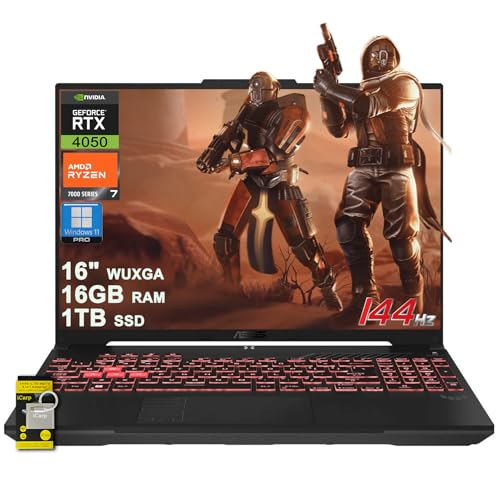

Best Gaming Laptops to Run a 4K Monitor On: Detailed Buyer Guide
Dedicated GPU Power and VRAM Capacity
Driving a 4K display demands immense graphical throughput because the system renders four times the pixel count of standard high definition panels. A dedicated graphics processing unit with at least 6GB to 8GB of high speed VRAM ensures textures load without stuttering. Laptops equipped with modern GPUs handle demanding rendering pipelines while maintaining smooth frame delivery on external panels.
When graphical memory runs out, the operating system swaps assets into slower system memory, causing sharp drops in responsiveness. Selecting a machine with contemporary architectures like NVIDIA RTX 50-series or AMD Radeon RX ensures support for hardware upscaling technologies. These intelligent upscalers reconstruct native frames efficiently, allowing playable frame rates on demanding Gaming Monitors without overtaxing portable hardware.
Modern Video Port Standards
Physical display output connections dictate the maximum refresh rate and color depth your external screen can achieve. An HDMI 2.1 port supports uncompressed 4K video at 120Hz or higher, which is essential for fast-paced action. Older HDMI ports frequently limit display signals to 30Hz or 60Hz, creating noticeable mouse cursor lag during daily navigation.
Connecting through USB4 or Thunderbolt channels offers an alternative path with substantial bandwidth for display routing and peripheral daisy-chaining. These versatile connections allow you to hook into HDMI monitors using straightforward adapter cables or dedicated docking stations. Checking the exact port generation prevents purchasing a laptop that artificially caps your display refresh rate.
Thermal Dissipation and Cooling Systems
Powering an external display while running intensive 3D applications generates concentrated heat within a compact notebook chassis. Advanced thermal systems utilizing end-to-end vapor chambers and multiple exhaust fans prevent internal processors from throttling performance. Sustained thermal headroom ensures your system maintains target clock speeds rather than dropping performance after twenty minutes.
Liquid metal compounds and multi-vent exhaust channels actively guide hot air away from sensitive motherboard components. When thermals remain controlled, both the CPU and GPU operate at elevated wattage limits for consistent gameplay delivery. Proper heat dissipation also keeps fan noise predictable, creating a quieter environment around your primary workstation desk.
CPU Performance and System Memory
Modern gaming engines require rapid multi-core processing to handle physics, background assets, and high-bandwidth video output streams. Processors featuring eight or more physical cores prevent bottlenecking when pairing capable mobile graphics cards with dense external panels. High processing throughput guarantees that background tasks do not interrupt demanding graphical workloads during live sessions.
System memory bandwidth plays an equally critical role when managing assets for high resolution monitors. Equipping your rig with at least 16GB of dual-channel DDR5 RAM ensures rapid data transit between memory banks and processor cores. Upgradable memory slots provide welcome longevity, allowing you to expand system memory as software requirements climb over time.
Multi-Display Bandwidth and MUX Switches
Laptops equipped with a dedicated MUX switch route graphical signals directly from the discrete graphics card to external display ports. Bypassing integrated processor graphics eliminates latency bottlenecks and unlocks maximum frame rates across external screens. This direct connection ensures optimal compatibility with variable refresh rate technologies on external Desktop & External Monitors.
Without direct routing, signals must pass through the integrated processor graphics pipeline before reaching display outputs. This intermediate hop introduces measurable latency and can reduce overall rendering speed in fast-paced competitive titles. Selecting a laptop with explicit display routing maximizes the visual return on your high resolution investment.
Power Delivery and Docking Compatibility
High performance notebooks rely on high wattage barrel chargers or advanced USB Power Delivery protocols to sustain full hardware limits. Plugging into external workstation displays often requires coordinating power cables, peripheral hubs, and dedicated video feeds. Laptops supporting 100W PD charging allow flexible single-cable setups for productivity tasks when traveling away from primary power bricks.
Investing in a machine with diverse port layouts simplifies your physical desk arrangement and reduces cable clutter. Having separate display, power, and high-speed data ports ensures you can attach external storage drives alongside sharp visual monitors. Organized connectivity produces a reliable gaming station that adapts smoothly between mobile travel and stationary desktop use.
How We Evaluated
Our evaluation methodology focuses on analyzing verified hardware architectures, bandwidth specifications, and thermal designs across 5 competing models. We reviewed manufacturer technical sheets to determine video port generations, discrete GPU power ratings, and display routing configurations. This objective assessment identifies which portable systems maintain stable multi-gigabit video pipelines for high resolution panels.
We also cross-referenced cooling configurations, memory expandability, and peripheral connectivity across ASUS, Thunderobot, NIMO models. By analyzing total platform power limits and port standards, we pinpointed models that avoid thermal throttling during prolonged sessions. This data-driven approach provides transparent guidance without relying on marketing claims or temporary benchmark spikes.
Common Mistakes to Avoid
Overlooking the specific revision of video ports is one of the most frequent errors when pairing laptops with external panels. Connecting a premium 4K screen to an older HDMI 2.0 port restricts your display to 60Hz, even if your monitor supports higher refresh speeds. Always confirm that the laptop features HDMI 2.1 or high-bandwidth USB4 before completing your purchase.
Underestimating dedicated VRAM requirements often leads to unexpected stuttering when rendering high resolution game textures. Opting for entry-level graphics with restricted memory buffers can cause severe frame drops in modern titles. Selecting a dedicated GPU with at least 6GB to 8GB of memory preserves smooth visual pacing.
Ignoring cooling designs and sustained wattage limits can turn a promising hardware configuration into a loud, throttled system. Compact gaming laptops require multi-fan cooling and extensive ventilation to sustain high GPU clock speeds under continuous load. Checking thermal solutions prevents buying hardware that drops frame rates after thirty minutes of heavy gameplay.
Buying Checklist
- Verify the laptop includes HDMI 2.1 or USB4 to support full 4K bandwidth at 120Hz or higher.
- Confirm the discrete GPU features at least 6GB of dedicated VRAM for stable texture rendering.
- Check that the processor possesses at least 8 cores to prevent multi-tasking bottlenecks.
- Ensure the system includes a minimum of 16GB dual-channel DDR5 memory with expandability options.
- Validate that cooling incorporates multi-fan ventilation or vapor chamber dissipation for sustained clock speeds.
- Confirm whether a hardware MUX switch is available for direct discrete GPU output routing.
- Review port locations to ensure display cables fit neatly within your existing desk setup.
- Check the included power adapter wattage to confirm the laptop runs at unrestricted graphics limits.
Final Thoughts
Selecting the right portable machine to power a dense external display comes down to balancing GPU throughput, thermal stability, and output ports. Our top overall recommendation is the ASUS ROG Strix G16 (2025) Gaming Laptop, which combines next-generation RTX graphics with an advanced vapor chamber cooling setup. It provides reliable processing headroom to drive rich visuals across demanding external monitors.
For balanced performance with generous video memory, the ASUS TUF Gaming A16 Laptop 16″ WUXGA 165Hz 100% offers outstanding value via its Radeon RX 7700S GPU. Shoppers needing flexible expansion can consider the NIMO 17.3 FHD AI Gaming Laptop for its USB4 docking support. Matching your hardware to your monitor guarantees an immersive and responsive gaming experience.
Frequently Asked Questions
What GPU is needed for Best Gaming Laptops to Run a 4K Monitor On in 2026?
To run modern games on an external 4K panel, we recommend at least an NVIDIA RTX 4050 or RTX 5060, or an AMD Radeon RX 7700S. These graphics processors support intelligent upscaling technologies that reconstruct native frames efficiently. Having at least 6GB to 8GB of dedicated video memory prevents memory bottlenecks during intense gameplay.
Can HDMI 2.0 support 4K gaming at high refresh rates?
HDMI 2.0 is limited to 4K resolution at 60Hz with standard color depth. For smooth 120Hz or 144Hz high refresh rate gaming, your laptop must feature HDMI 2.1 or USB4 display output. Connecting to high-end high resolution monitors over older ports restricts frame rates regardless of your graphics card power.
Does connecting a laptop to an external 4K screen cause performance loss?
Displaying content on an external monitor does not inherently degrade laptop performance. In fact, using an external port connected directly to the discrete GPU can bypass internal routing bottlenecks and increase frame rates. The system only experiences lower frame rates if you render games at native 4K resolution rather than 1080p or 1440p.
How much system RAM is required for 4K external gaming?
A minimum of 16GB of DDR5 system RAM is recommended for running modern games alongside an external high resolution display. Having adequate dual-channel memory ensures background applications, communication tools, and game engines run without asset stuttering. Expanding memory to 32GB provides additional headroom for heavy multitasking and video editing workflows.
Will a laptop overheat when powering an external 4K monitor?
Powering dense pixel arrays increases thermal loads on both the graphics card and processor. Choosing a machine with robust vapor chamber cooling and multiple exhaust vents keeps operational temperatures within safe limits. Elevating the laptop slightly on a stand also improves airflow intake during extended gaming sessions.
Can I use USB4 or Thunderbolt ports to connect a 4K gaming screen?
Yes, modern USB4 and Thunderbolt ports support DisplayPort alternate mode with ample bandwidth for 4K video at high refresh rates. You can connect directly using a USB-C to DisplayPort cable or route signals through a compatible desktop docking station. These high-speed ports also allow connecting external storage drives simultaneously.
What is the top-rated option among Best Gaming Laptops to Run a 4K Monitor On in 2026?
The ASUS ROG Strix G16 (2025) Gaming Laptop is our top pick for 2026 due to its next-generation RTX 5060 GPU and tri-fan cooling system. It easily pushes high resolution signals through modern display outputs while maintaining stable core clock speeds. Its robust hardware configuration handles demanding gaming titles and creative production tasks reliably.
Is a MUX switch necessary when gaming on an external monitor?
A MUX switch is very beneficial on the internal screen, but many laptops wire external video ports directly to the discrete GPU automatically. When external ports connect straight to the dedicated graphics card, you receive uncompromised frame rates without signal interference. Checking your laptop port wiring specifications confirms direct GPU output routing.