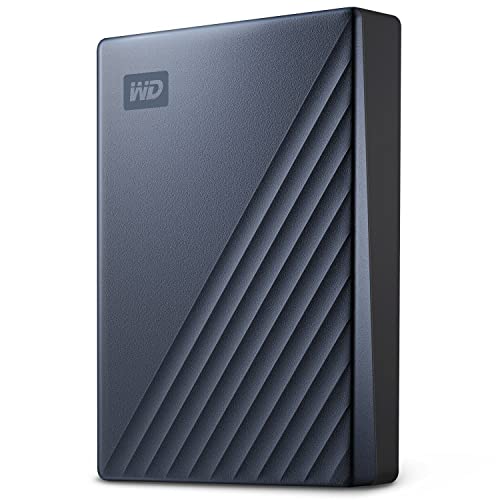
Finding reliable external storage for your Mac computer requires choosing a drive that matches your capacity needs and backup routine. The WD 6TB My Passport for Mac, Navy is our top choice for Mac users seeking massive storage space and seamless setup out of the box.
For users who prefer a budget-friendly option, the Seagate 2TB Portable Hard Drive offers simple plug and play protection across different workstations. While comparing 5 options in October 2026, we prioritized drive stability and port compatibility. If you are also expanding your workspace layout, consider pairing your setup with the best external monitors for enhanced screen space.



Best Hard Drives to Back Up with Time Machine Buying Guide
Storage Capacity and Backup Scaling
Selecting the right drive capacity depends directly on the internal storage size of your primary Mac computer setup. We recommend choosing a hard drive with at least twice the capacity of your internal solid state drive.
macOS Time Machine saves hourly snapshots, daily backups, and weekly archives until the external target drive becomes full. Having substantial extra storage overhead allows your backup history to stretch across several months without deleting older system images.
Interface Compatibility and Port Speed
Modern Mac laptops rely exclusively on USB-C ports, while older desktop models feature standard USB-A connections for peripheral accessories. Selecting a hard drive with native USB-C compatibility avoids extra adapter dongles while preserving rapid file transfer performance.
If you switch between desktop and mobile environments, verify which connection cables come included inside the product package. For stationary desk environments, combining clean storage wiring with desktop external monitors creates a clean and organized digital workspace.
File System Formatting Requirements
macOS Time Machine operates most reliably when paired with Apple File System or APFS formatting for automated system snapshots. External drives formatted for Windows operating systems require quick reformatting using macOS Disk Utility prior to initiating your backup routine.
Pre-formatted Mac drives streamline initial setup steps so you can begin saving critical files immediately after unboxing. Spending a minute to confirm drive formatting prevents potential backup errors and ensures uninterrupted background backup cycles.
Hardware Encryption and Data Protection
Data security goes far beyond simple physical hardware redundancy when storing personal photos or confidential work files externally. Look for drives offering built-in 256-bit AES hardware encryption to protect sensitive data if your drive is lost or stolen.
Password protection utilities work alongside native macOS security layers to safeguard your complete backup archives. Hardware-based security keeps your files private without causing performance lag or placing unnecessary processing demands on your computer.
Form Factor and Physical Build Quality
Portable external hard drives offer compact convenience for users who frequently transport data between home and workplace locations. Durable metal or high-grade synthetic enclosures shield internal drive components from accidental impacts during daily travel inside computer bags.
Desktop hard drives stay stationary on your desk surface and provide massive storage capacity for extensive digital archives. Selecting the right physical design ensures your backup hardware integrates effortlessly into your daily computing environment.
| Drive Category | Power Source | Primary Advantage |
|---|---|---|
| Portable Drives | Bus powered via USB | Compact and highly travel friendly |
| Desktop Drives | External AC wall power | Maximum total storage capacity ceiling |
How We Evaluated
Our evaluation process relies on reviewing technical specifications, connection standards, file format compatibility, and real-world utility. We carefully examine manufacturer hardware claims and evaluate drive reliability across typical Mac backup scenarios to ensure accurate recommendations.
We compare enclosure build quality, bundled cables, hardware encryption capabilities, and software extras to gauge long-term performance value. Our goal is providing transparent data-driven insights that help you select the ideal backup drive for your specific Mac configuration.
Common Mistakes to Avoid
Underestimating future storage needs is the most frequent error users commit when purchasing dedicated Mac backup drives. Buying a drive matching your current internal storage leaves zero room for Time Machine to save historical file versions.
Failing to check physical port compatibility leads to inconvenient adapter dongles and unexpected cable disconnects during background backups. Always confirm whether your Mac requires USB-C or standard USB-A connections before completing your purchase.
Unplugging your external drive for long intervals disrupts the regular backup schedules built into the macOS operating system. Keep your backup drive connected regularly so your system snapshots remain completely up to date.
Buying Checklist
- Confirm the drive capacity is at least double your internal Mac storage space.
- Verify if the drive includes native USB-C or USB-A cables for your ports.
- Check whether the drive comes pre-formatted for macOS or needs Disk Utility setup.
- Ensure the device supports 256-bit AES hardware encryption for sensitive files.
- Choose a lightweight bus-powered portable model if you travel frequently.
- Review manufacturer warranty terms to protect your hardware investment over time.
- Confirm software compatibility with your specific macOS version before purchase.
Final Thoughts
Protecting your valuable Mac data requires choosing a reliable drive designed to work smoothly with automated backup software. For maximum overall capacity and native Mac formatting, we recommend the WD 6TB My Passport for Mac, Navy as our top overall choice.
If you need an economical drive for basic file protection, the Seagate 2TB Portable Hard Drive delivers great performance without complex setup. Users needing flexible connectivity across multiple Apple devices will benefit from the 2TB External Hard Drive for iPhone.
Investing in solid backup hardware ensures your digital files remain safe against hardware failures and accidental deletion. You can also read our guide on best external computer monitors to complete your ideal desktop setup.
Frequently Asked Questions
How much capacity do I need for Best Hard Drives to Back Up with Time Machine in 2026?
We recommend selecting a hard drive with at least double the capacity of your Mac internal SSD storage. This extra headroom allows Time Machine to retain historical system snapshots over several months.
Do external hard drives work automatically with macOS Time Machine?
Most external drives work smoothly, though some require quick reformatting in Disk Utility prior to first use. Drives labeled specifically for Mac come pre-formatted in APFS or HFS+ for immediate recognition.
Can I use a Windows formatted hard drive on my Mac?
Yes, you can reformat any Windows drive using Disk Utility on your Mac computer in minutes. Selecting APFS formatting ensures optimal compatibility with current macOS Time Machine features.
Is USB-C connection necessary for Mac backup drives?
USB-C is not mandatory, but it provides direct connection convenience for modern Mac laptops without using adapters. Standard USB-A drives function equally well when paired with appropriate port adapters.
Should I choose a portable drive or a desktop drive?
Portable drives draw power directly from your Mac computer, making them ideal for users on the go. Desktop drives offer higher maximum capacities but require an external AC power adapter outlet connection.
How often does Time Machine perform automatic backups?
Time Machine saves hourly backups for 24 hours, daily backups for a month, and weekly backups for previous months. It manages drive space automatically by removing the oldest snapshots when storage fills up.
Can I encrypt my Time Machine backup files for security?
Yes, macOS allows you to activate backup encryption directly inside system preferences during drive setup. Many external hard drives also feature built-in hardware encryption for added data privacy protection.
What other workstation upgrades complement Mac backups in 2026?
Adding reliable external storage protects your data while pairing your setup with best high resolution monitors improves visual workspace comfort and daily productivity.