Photo editing suites like Lightroom and Photoshop consume massive amounts of system memory when processing raw files. For high-speed DDR5 performance in October 2026, the Crucial 32GB DDR5 RAM Kit (2x16GB) is our top recommendation for creators needing instant responsiveness. Its high clock speed and dual-channel configuration eliminate rendering bottlenecks across 6 evaluated memory kits.
If your editing laptop relies on DDR4 architecture, the Crucial 64GB DDR4 RAM Kit (2x32GB) provides massive memory headroom for multilayer composite projects. Pairing this high-capacity upgrade with high-quality computer monitors ensures your visual workspace stays fluid and color-precise.



Best Laptop RAM for Photo Editing: Faster Photo Renders Buying Guide
Memory Capacity and Workflow Demands
Photo editing applications store active image data, undo history, and layer previews directly in system memory. When you work on high-resolution raw files, having at least 32GB of RAM prevents your operating system from swapping active assets to slower storage drives.
For advanced users running simultaneous batch exports while working on large screen workstation monitors, moving to 64GB creates a completely frictionless editing environment. Allocating ample physical memory guarantees that background adjustments render without freezing your main canvas.
DDR4 vs DDR5 Memory Generations
Memory generation is strictly dictated by your laptop motherboard and processor architecture. Modern systems with recent Intel or AMD chips support DDR5, which offers higher base bandwidth and lower operating voltages than DDR4.
You cannot install a DDR5 SODIMM module into a DDR4 slot due to differing pin counts and notch placements. Checking your system manual ensures you purchase the exact generation supported by your laptop hardware.
| Feature | DDR4 SODIMM | DDR5 SODIMM | Photo Editing Impact |
|---|---|---|---|
| Operating Voltage | 1.2V | 1.1V | Lower power draw and less laptop thermal throttle |
| Standard Speeds | 2666MHz – 3200MHz | 4800MHz – 5600MHz | Faster raw image rendering and export times |
| Pin Count | 260-Pin | 262-Pin | Determines physical motherboard slot compatibility |
| On-Die Power Management | Motherboard Controlled | Module Integrated (PMIC) | Enhanced voltage stability during heavy export loads |
Dual-Channel vs Single-Channel Architecture
Running memory in dual-channel configuration doubles the theoretical data transfer rate between your processor and RAM. Using two matched modules, such as a 2x16GB kit, allows your CPU to read and write pixel data across two independent 64-bit channels.
A single high-capacity module limits memory throughput to half of what your motherboard can handle. When selecting the Best Laptop RAM for Photo Editing: Faster Photo Renders, choosing matched dual-stick kits guarantees peak rendering efficiency.
Clock Frequencies and Latency Timings
RAM frequency, measured in megahertz, dictates how many transfer cycles memory executes every second. Faster speeds like 5600MHz accelerate data throughput, allowing creative software to render complex filters and batch adjustments with minimal delay.
Column Address Strobe latency, known as CAS latency or CL, measures the delay before RAM responds to a data command. While lower latency is desirable, overall bandwidth gains from higher frequencies yield superior real-world performance when previewing images on OLED color-accurate displays.
Form Factor and SODIMM Compatibility
Laptops utilize compact SODIMM form factors rather than full-sized desktop DIMM memory sticks. DDR4 modules use a 260-pin layout, while DDR5 modules require a 262-pin socket design.
Always verify whether your notebook features upgradable SO-DIMM slots or soldered memory before purchasing new hardware. Thin ultrabooks frequently solder memory directly to the mainboard, preventing any aftermarket capacity upgrades.
How We Evaluated
We analyzed verified hardware specifications, memory timings, and module configurations across leading laptop RAM models. Our evaluation focused on data transfer bandwidth, dual-channel stability, and practical benefits for demanding photo editing workflows.
Each kit was assessed for plug-and-play installation simplicity, automatic clock scaling, and brand reliability within modern Intel and AMD mobile platforms. This objective approach ensures you receive balanced recommendations tailored to real-world editing requirements.
Common Mistakes to Avoid
Purchasing desktop DIMM sticks instead of laptop SODIMM modules is an easy mistake that results in incompatible hardware. Always confirm that your chosen product explicitly states SODIMM or notebook memory.
Mixing memory sticks from different brands or with unequal speeds can force your system into unstable downclocking or single-channel operation. Buying a factory-matched pair guarantees consistent latency and optimal stability under heavy rendering loads.
Assuming every laptop can be upgraded without checking the internal layout leads to frustrating returns. Some slim laptops use soldered RAM, so opening your manufacturer specification sheet first is essential.
Buying Checklist
- Verify whether your laptop has accessible SODIMM memory slots or soldered RAM.
- Confirm the exact memory generation supported by your laptop CPU (DDR4 or DDR5).
- Check the maximum memory capacity supported by your laptop motherboard firmware.
- Select a matched dual-module kit to enable dual-channel memory bandwidth.
- Choose memory frequency that matches or automatically downclocks to your CPU specification.
- Ensure the module operates at standard JEDEC voltages for laptop thermal stability.
- Prepare the appropriate miniature screwdrivers and antistatic tools for safe installation.
Final Thoughts
Upgrading your laptop memory is one of the most cost-effective methods to accelerate raw processing and eliminate application stutter. For modern laptops requiring DDR5 speed, the Crucial 32GB DDR5 RAM Kit (2x16GB) is our top overall recommendation for balanced speed and responsiveness.
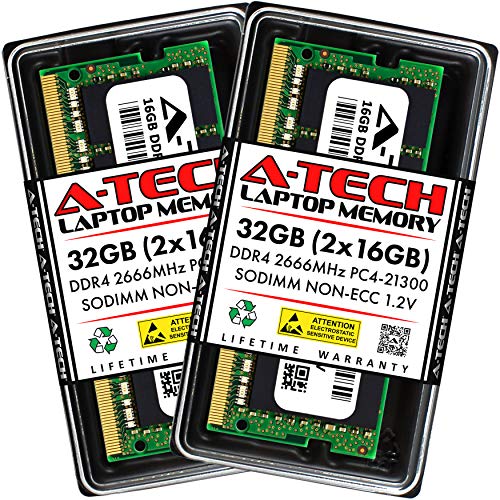
If you work on an older DDR4 workstation handling massive composite files, the Crucial 64GB DDR4 RAM Kit (2x32GB) provides unbeatable capacity. Budget-conscious editors can turn to the A-Tech DDR4 RAM 32GB Kit (2x16GB) for dependable performance when paired with color-calibrated monitors.
Choosing the right memory configuration transforms your mobile editing experience into a seamless production workstation. Match your hardware needs, follow safe installation practices, and enjoy significantly reduced photo export times.
Frequently Asked Questions
How much RAM is needed for photo editing in 2026?
For basic photo editing with single raw files, 16GB of memory provides adequate performance. Professional workflows involving multiple layers, large catalogs, and batch exports run significantly faster with 32GB or 64GB of RAM.
Does dual-channel memory improve photo export speeds?
Yes, dual-channel memory doubles the bandwidth between your memory and processor. This extra data throughput helps photo editing software move massive raw file caches faster, directly speeding up batch export times.
Can I put DDR5 RAM into a laptop with DDR4 slots?
No, DDR4 and DDR5 memory modules have different pin counts and physical notch locations. A DDR5 SODIMM will not fit into a DDR4 laptop slot, making motherboard compatibility a critical factor.
What is the Best Laptop RAM for Photo Editing: Faster Photo Renders for newer systems?
For newer laptops supporting DDR5 memory, the Crucial 32GB DDR5 RAM Kit (2x16GB) delivers exceptional bandwidth. It allows high-end editing apps to render image previews rapidly without taxing system resources.
Does RAM speed matter as much as RAM capacity for photo editing?
Capacity is the primary priority because running out of RAM causes severe slowdowns. Once you meet your capacity requirement, higher memory clock speeds deliver noticeable speedups during filter applications and rendering passes.
How does upgrading RAM help when using external displays?
Running high-resolution external screens increases system display memory overhead. Expanding your RAM ensures smooth canvas panning and zero UI lag when editing photos on compact external monitors.
Is it difficult to install laptop RAM at home?
Most laptops with accessible SODIMM slots allow simple memory installation with just a standard small screwdriver. You simply unscrew the bottom panel, unclip the old modules, and snap the new RAM sticks securely into place.
Will faster RAM reduce Lightroom export times?
Faster RAM frequency and dual-channel bandwidth reduce memory bottlenecks during CPU-intensive export tasks. While the processor handles image encoding, fast RAM ensures data feeds continuously without idle wait cycles.